

The items of a combo box control are displayed in the order in which they were added. A combo box does not sort items automatically. An application sorts the items whenever needed using the SortItems or SortItemsEx function, typically after all items have been added and when the user clicks a column header.
SortItems sorts items by the cell text of one column. The indexTC parameter defines which items are sorted: with -1, all items on level 0 are sorted, otherwise the immediate dependent items of the specified parent item are sorted. Only one level is sorted by each call. The dependent items of the items being sorted are moved with their parent item, but they are not sorted. To sort a complete hierarchy, the function is called for each parent item.
The order is determined by an application supplied comparison callback (SFTBOX_SORTPROC). The callback receives the cell text and the item data (see SetItemData) of the two items to compare and returns 0 if the two items are equal, a positive value if the first item is to be sorted after the second item and a negative value if the first item is to be sorted before the second item. If no callback is specified (NULL), the items are sorted by their cell text in ascending order, using a case-sensitive comparison (the Windows function CompareString) with the locale of the combo box (see SetLocale).
int CALLBACK SortAscending(HWND hwnd, LPCTSTR lpszString1, LPCTSTR lpszString2,
            SFTBOX_DWORD_PTR itemData1, SFTBOX_DWORD_PTR itemData2)
{
    return lstrcmpi(lpszString1, lpszString2);
}

int CALLBACK SortDescending(HWND hwnd, LPCTSTR lpszString1, LPCTSTR lpszString2,
            SFTBOX_DWORD_PTR itemData1, SFTBOX_DWORD_PTR itemData2)
{
    return lstrcmpi(lpszString2, lpszString1);
}

/* sort all items on level 0 by the text in column 1 */
SftBox_SortItems(hwndBox, -1, 1, fDescending ? SortDescending : SortAscending);
SortItemsEx works the same way, but its callback (SFTBOX_SORTPROCEX) also receives the cell data of the two cells being compared (cellData member of the SFTBOX_CELL structure, see SetCellInfo). This is useful to sort a column by a value other than the text displayed, such as a number or a date.
The sorting algorithm preserves the order of items that compare as being equal. This allows items to be sorted by several columns, by sorting the least significant column first and the most significant column last.
Sorting changes the index of items. The selected item remains selected after sorting, GetCurSel returns its new index. If the dropdown portion is not shown and the index of the selected item has changed, SFTBOXN_SELCHANGE is sent. The sorting functions can be called while the dropdown portion is shown and do not close it. In this case, the static portion or edit control portion keeps displaying the same item.
An application that saves item index values must update them after sorting. Item IDs (GetItemID, GetItemIndex) can be used to locate items after their index has changed.
A column header can show a sort indicator, which tells the user by which column the items are sorted and in which direction. EnableSortIndicators enables sort indicators. The indicator of a column is shown using the colFlag member of the column's SFTBOX_COLUMN structure, by adding SFTBOX_COL_SORTED_ASC (ascending) or SFTBOX_COL_SORTED_DESC (descending). Sort indicators are only a visual indication, the combo box does not sort items.
static void SetSortIndicator(HWND hwndBox, int col, BOOL fDescending)
{
    LPSFTBOX_COLUMN lpCol;
    int c, nCols = SftBox_GetColumns(hwndBox, &lpCol);
    if (col >= nCols)
        return;
    for (c = 0 ; c < nCols ; ++c)
        lpCol[c].colFlag &= ~(SFTBOX_COL_SORTED_ASC | SFTBOX_COL_SORTED_DESC);
    lpCol[col].colFlag |= fDescending ? SFTBOX_COL_SORTED_DESC : SFTBOX_COL_SORTED_ASC;
    SftBox_SetColumns(hwndBox, nCols, lpCol);
}

SftBox_EnableSortIndicators(hwndBox, TRUE, FALSE); /* the application sets the sort indicators */ 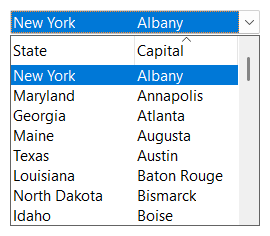
If the fAuto parameter of EnableSortIndicators is TRUE, the combo box maintains the sort indicators itself as the user clicks a column header displayed as a button with the left mouse button: a column that is clicked for the first time shows the ascending indicator and the indicators of all other columns are removed. Clicking the same column again reverses the direction. The indicators are updated in the column headers that were clicked (dropdown portion or static/edit control portion). The application still has to sort the items.
When the user clicks a column header displayed as a button, the parent window receives the SFTBOXN_LBUTTONDOWN_COLUMN notification (wrapped using SFTBOXN_MAIN_NOTIFICATION for the column headers above the static portion or edit control portion, see Column Headers). While the notification for a column header of the dropdown portion is handled, GetHeaderButton returns the column that was clicked. The application keeps track of the current sort column and direction, sorts the items and, unless automatic sort indicators are used, updates the sort indicator.
static int m_sortCol = -1;
static BOOL m_fDescending = FALSE;

case SFTBOXN_LBUTTONDOWN_COLUMN: {
    int col = SftBox_GetHeaderButton(hwndBox);
    if (col >= 0) {
        m_fDescending = (col == m_sortCol) ? !m_fDescending : FALSE;
        m_sortCol = col;
        SftBox_SortItems(hwndBox, -1, col, m_fDescending ? SortDescending : SortAscending);
        SetSortIndicator(hwndBox, col, m_fDescending);
    }
    break;
 }
Items provided by a virtual data source cannot be sorted by the combo box. The sorting functions fail and the application sorts its data source instead (see Virtual Data Source).

 On
 Off