

The dropdown portion of a combo box control is the list of items the user can select from. A simple combo box always displays the dropdown portion, below the edit control portion. In a dropdown or dropdown list combo box, the dropdown portion is a separate window, which is shown and hidden by the user or by the application. The remainder of this topic describes dropdown and dropdown list combo boxes.
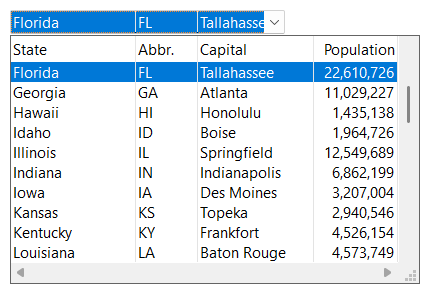
GetHWNDDropDown returns the window handle of the dropdown portion. Most combo box functions which deal with items, cells, columns and headers affect the dropdown portion.
The user shows the dropdown portion by clicking the dropdown button or the static portion, or by using the F4 key, the Alt+Down Arrow or Alt+Up Arrow key combination (see Keyboard & Mouse Interface). The same actions hide it again. It is also hidden when the user selects an item with the mouse, presses the Enter or Escape key or when the combo box loses the input focus.
An application uses ShowDropDown to show or hide the dropdown portion and GetDroppedState to determine whether it is currently shown. RollUpDelayed hides the dropdown portion after a time interval. GetDroppedControlRect returns the location of the dropdown portion in screen coordinates while it is shown.
If a combo box has no items, the dropdown portion cannot be shown.
The dropdown portion is shown using a sliding animation if combo box animation is enabled in Windows. It is shown without animation if it has a sizing box.
By default, the F4 key shows and hides the dropdown portion and the Down Arrow key selects the next item, even while the dropdown portion is hidden. With the extended user interface, enabled using SetExtendedUI, the Down Arrow key shows the dropdown portion if it is hidden and the F4 key is ignored.
The following members of the SFTBOX_CONTROL structure (see SetControlInfo) define additional behavior:
| Member | Description |
|---|---|
| fAutoDropOnFocus | Set to TRUE to show the dropdown portion automatically when the combo box receives the input focus. |
| fAutoDropOnInput | Set to TRUE to show the dropdown portion automatically when the user types a character. |
| fCursorSelect | If TRUE (the default), the item under the mouse cursor is selected as the mouse cursor is moved within the dropdown portion. Disabled items are skipped if the fSelectEnabledItemsOnly member is TRUE. Such a selection is temporary until the user accepts it by clicking on the item, by pressing the Enter key or by closing the dropdown portion using the F4 key, Alt+Up Arrow, Alt+Down Arrow or the dropdown button. If the dropdown portion is closed without accepting it, the previously accepted item is selected again; if no item was accepted before, no item is selected. If FALSE, an item is selected by clicking on it only. |
| fAllowNextRollup | Can be set to FALSE by an application while it handles a mouse click notification, to prevent the dropdown portion from being hidden as a result of this mouse click. The combo box sets this member to TRUE again at the next mouse click. |
| fAllowNextRolldown | Can be set to FALSE by an application while it handles a mouse click notification of the static portion (see SFTBOXN_MAIN_NOTIFICATION), to prevent the dropdown portion from being shown as a result of this mouse click. |
SetDroppedHeight defines the height of the dropdown portion. A positive value is the number of items shown (the default is 6 items), a negative value is the height in pixels. The dropdown portion never shows more items than the combo box contains and is sized so that only complete items are shown.
SetDroppedWidth defines the width of the dropdown portion. A positive value is the width in pixels, a negative value is a percentage of the width of the combo box (-150 is one and a half times as wide as the combo box). With the value 0 (the default) the dropdown portion is as wide as the combo box.
With SetDropDownOptimalWidth, the dropdown portion is made wide enough to show all columns without horizontal scrolling. This uses the horizontal extent, which must be defined (see SetHorizontalExtent and RecalcHorizontalExtent). The width defined using SetDroppedWidth is used if it is larger.
SetDropDownPosition defines whether the dropdown portion is shown below (the default) or above the combo box. If there is not enough room on the monitor at the preferred position and there is more room on the other side, the other side is used. The width is limited so the dropdown portion does not extend beyond the work area of the monitor.
Pixel values are scaled for the monitor's DPI if pixel scaling is enabled (see Per-Monitor DPI and Scaling).
SetSizeBox (or SetShowResizer) adds a sizing box to the bottom corner of the dropdown portion, which allows the user to resize the dropdown portion with the mouse. The sizing box is located where the horizontal and vertical scroll bars meet, so it is only available if the combo box is created with the window styles WS_HSCROLL and WS_VSCROLL and scroll bars are always shown (window style SFTBOXSTYLE_DISABLENOSCROLL or SetDisableNoScroll).
Once the user has resized the dropdown portion, the SFTBOXN_SIZEBOX notification is sent to the parent window. The new size replaces the values defined using SetDroppedWidth and SetDroppedHeight, so the dropdown portion is shown at this size the next time. The values can be retrieved using GetDroppedWidth and GetDroppedHeight (the height as a negative pixel value).
By default, the dropdown portion is hidden (without accepting a temporary selection) when the application uses AddString, InsertString, DeleteString, DeleteDependents, ResetContent, CopyItem, MoveItem, Expand, Collapse or SetItemExpandable (with FALSE). An application which modifies the list of items while the dropdown portion is shown, for example to expand an item when its expand/collapse button is clicked, can suspend this using SftBox_RollupOnChangeOFF and resume it using SftBox_RollupOnChangeON (CSftBox::RollupOnChangeOFF, CSftBox::RollupOnChangeON). The two calls must be paired and can be nested. SetRollupOnChange and GetRollupOnChange access the counter used; the dropdown portion is hidden while its value is 1 or greater.
The following notifications are sent to the parent window, as WM_COMMAND messages:
| Notification | Description |
|---|---|
| SFTBOXN_DROPDOWN_READY | The dropdown portion is about to be shown. Its size and position have not been calculated yet, so the application can still change dropdown portion attributes. The application can send a WM_CANCELMODE message to the combo box to prevent the dropdown portion from being shown. |
| SFTBOXN_DROPDOWN | The dropdown portion is being shown. |
| SFTBOXN_SELENDOK | The user has accepted the current selection. The dropdown portion is about to be hidden. The application can send a WM_CANCELMODE message to the combo box to leave the dropdown portion shown. |
| SFTBOXN_CLOSEUP | The dropdown portion is being hidden. |
| SFTBOXN_SELENDCANCEL | The dropdown portion has been hidden without accepting a selection (Escape key, loss of the input focus, a click outside of the combo box). A temporary selection has been discarded. |
| SFTBOXN_SELCHANGE | The selected item has changed. |
| SFTBOXN_SIZEBOX | The user has resized the dropdown portion using the sizing box. |
| SFTBOXN_TOPCHANGE | The dropdown portion has been scrolled vertically. |
When the user accepts a selection, SFTBOXN_SELENDOK is sent, followed by SFTBOXN_CLOSEUP. SFTBOXN_SELCHANGE is sent when the selected item changes. This can be before SFTBOXN_SELENDOK (an item that is clicked or selected using the arrow keys is selected immediately) or after SFTBOXN_CLOSEUP (a temporary selection made by moving the mouse cursor, accepted using the Enter key).
If the application hides the dropdown portion using ShowDropDown or RollUpDelayed, SFTBOXN_CLOSEUP is sent, but SFTBOXN_SELENDOK and SFTBOXN_SELENDCANCEL are not.
Mouse clicks in the dropdown portion are reported using SFTBOXN_LBUTTONDOWN_TEXT, SFTBOXN_LBUTTONDOWN_COLUMN and the other mouse click notifications. A context menu request sends SFTBOXN_CONTEXTMENU_DD (see Context Menu).

 On
 Off