

Flyby highlighting gives the user immediate feedback about the item the mouse cursor is located on. As the mouse cursor is positioned above any cell of an item in the dropdown portion of a combo box control, the cell in the first displayed column of that item is shown underlined.
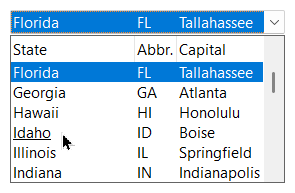
If a selection style is used that renders the selection using a rounded outline rectangle with a gradient fill (SFTBOX_SELECTION_OUTLINE, see SetSelectionStyle), the cell text is not underlined. Instead, the item is highlighted using a rounded outline rectangle with a gradient fill. The colors used are defined using the flybyOutlineBorder, flybyInnerBorder, flybyInnerFill1 and flybyInnerFill2 members of the SFTBOX_COLORS structure (see SetCtlColors).
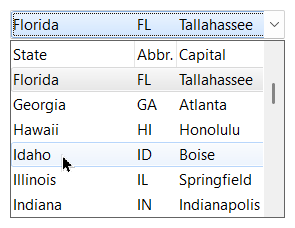
Flyby highlighting is enabled or disabled using SetFlybyHighlight and is enabled by default. GetFlybyHighlight returns the current setting. Flyby highlighting is only available in the dropdown portion. The static portion never uses flyby highlighting.
SftBox_SetFlybyHighlight(hwndBox, FALSE); /* no flyby highlighting */By default, the selection highlight of the dropdown portion also follows the mouse cursor (see the fCursorSelect member of the SFTBOX_CONTROL structure), so the item under the mouse cursor is shown as selected item. Flyby highlighting is most useful when fCursorSelect is set to FALSE, in which case the selection highlight remains on the selected item and flyby highlighting is the only indication of the mouse cursor position.

 On
 Off