

The dropdown portion of a dropdown combo box or dropdown list combo box can be resized by the user if a sizing box is available. The sizing box is shown in the corner of the dropdown portion where the vertical and the horizontal scroll bar meet.
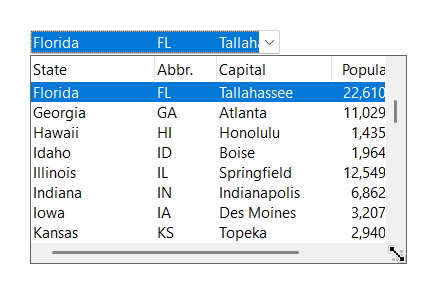
The sizing box is enabled using SetShowResizer or SetSizeBox. Both functions define the same setting and GetShowResizer and GetSizeBox return the same value. They differ in one respect only: if the dropdown portion is currently shown, SetSizeBox closes it, whereas SetShowResizer leaves it open and redraws it.
The sizing box occupies the area between the two scroll bars, so it is only available if both scroll bars are always present. The combo box must be created with the window styles WS_VSCROLL and WS_HSCROLL, and scroll bars that are not needed must be shown disabled, either using the window style SFTBOXSTYLE_DISABLENOSCROLL or by calling SetDisableNoScroll(TRUE) (see scroll bars). Otherwise the setting has no effect. A simple combo box does not offer a sizing box.
/* resource script: both scroll bars, shown even if not needed */
CONTROL "", IDC_BOX, "SftBoxControl60",
        SFTBOXSTYLE_DROPDOWNLIST | SFTBOXSTYLE_DISABLENOSCROLL | WS_VSCROLL | WS_HSCROLL | WS_BORDER | WS_TABSTOP,
        10, 10, 120, 14

/* during initialization */
SftBox_SetShowResizer(hwndBox, TRUE);
A combo box created with WS_VSCROLL and WS_HSCROLL but without SFTBOXSTYLE_DISABLENOSCROLL can enable the sizing box at run time:
SftBox_SetDisableNoScroll(hwndBox, TRUE);
SftBox_SetShowResizer(hwndBox, TRUE);
The user resizes the dropdown portion by pressing the left mouse button on the sizing box and, without releasing the mouse button, dragging the sizing box. The width and height of the dropdown portion follow the mouse cursor. Once the mouse button is released, the parent window receives the SFTBOXN_SIZEBOX notification as a WM_COMMAND message.
The new width and height are preserved. The next time the dropdown portion is shown, the same dimensions are used. If the height defined by the user is larger than needed for the available items, the dropdown portion is made smaller so no empty space is shown. The height is also adjusted so only complete items are shown. If SetDropDownOptimalWidth is used and a horizontal scrolling extent is defined, the dropdown portion is at least as wide as the horizontal scrolling extent each time it is shown, even if the user defined a smaller width.
The dimensions defined by the user can be retrieved using GetDroppedWidth and GetDroppedHeight, for example in response to the SFTBOXN_SIZEBOX notification, and can be saved by the application. After the user has resized the dropdown portion, GetDroppedWidth returns the width in pixels and GetDroppedHeight returns a negative value, which is the height in pixels (a positive value is a number of items). The same values can be used with SetDroppedWidth and SetDroppedHeight to restore the dimensions when the combo box is created again.
case SFTBOXN_SIZEBOX: {
    int width = SftBox_GetDroppedWidth(hwndBox);
    int height = SftBox_GetDroppedHeight(hwndBox);
    SaveDropDownSize(width, height);        /* application function */
    break;
 }

/* during initialization */
int width, height;
if (LoadDropDownSize(&width, &height)) {    /* application function */
    SftBox_SetDroppedWidth(hwndBox, width);
    SftBox_SetDroppedHeight(hwndBox, height);
}

 On
 Off