

A combo box control can display column headers with a title for each column. Column headers are available for single- and multi-column combo boxes and can be shown in the dropdown portion, in the static portion (or edit control portion), or in both. Column headers are also used to resize and reorder columns (see Column Resizing and Column Reordering).
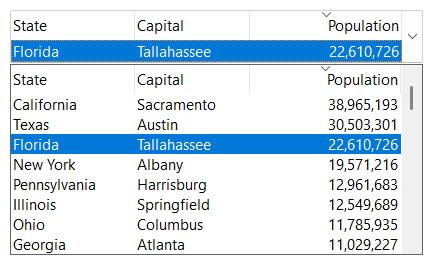
SetShowHeaderDropDown shows or hides the column headers at the top of the dropdown portion. SetShowHeaderMain shows or hides the column headers above the static portion or edit control portion. The two settings are independent. If the column headers are shown above the static portion or edit control portion, the height of a dropdown combo box or dropdown list combo box increases accordingly.
SetHeaderStyle defines whether the column headers are displayed as buttons (SFTBOX_COLSTYLE_BUTTONTEXT) or as titles (SFTBOX_COLSTYLE_TITLETEXT). The style applies to the column headers of both portions.
SftBox_SetShowHeaderDropDown(hwndBox, TRUE);  /* column headers in the dropdown portion */
SftBox_SetHeaderStyle(hwndBox, SFTBOX_COLSTYLE_BUTTONTEXT); /* shown as buttons */
SetShowHeader combines these settings. With SFTBOX_COLSTYLE_BUTTONTEXT or SFTBOX_COLSTYLE_TITLETEXT, it sets the header style and shows the column headers above the static portion or edit control portion. The column headers of the dropdown portion remain shown or hidden as defined using SetShowHeaderDropDown and use the new style. With SFTBOX_COLSTYLE_NONE, the column headers of both portions are hidden.
The header text of a column is defined using the lpszTitle member of the column's SFTBOX_COLUMN structure when the columns are defined with SetColumns. It can be changed later using SetHeader and retrieved using GetHeader and GetHeaderLength. The styleTitle member defines whether the text is left aligned (ES_LEFT), centered (ES_CENTER) or right aligned (ES_RIGHT) within the column header.
A column header can also display a picture, defined using the Picture1 member of the SFTBOX_COLUMN structure. All column header pictures must be the same height and width.
The font used for all column headers can be defined using SetColHeaderFont. The SFTBOX_COLUMN structure offers color members for an individual column header (headerColorBg, headerColorFg, etc.), the default colors of all column headers are defined using SetCtlColors.
If the column headers are displayed as buttons, the user can click a header button. A clicked button remains in its pressed position until another header button of the same portion is clicked. Within the column headers of one portion, only one header button can be in the pressed position at any one time. GetHeaderButton returns the column number of the button pressed in the column headers of the dropdown portion or, if none is pressed there, in the column headers above the static portion or edit control portion (-1 if no button is pressed). SetHeaderButton presses the button of a column in the column headers of both portions under program control (-1 releases the pressed buttons).
The styleTitle member of the SFTBOX_COLUMN structure can include the following values:
| SFTBOX_HEADER_UP | The header button automatically returns to its "up" position when clicked. |
| SFTBOX_HEADER_DISABLED | The column header is disabled and cannot be clicked. |
A column header can show a sort indicator, a small arrow that tells the user that the items are sorted by this column, in ascending or descending order. EnableSortIndicators enables sort indicators (the column headers become slightly taller to make room for them). The indicator of a column is shown by adding SFTBOX_COL_SORTED_ASC or SFTBOX_COL_SORTED_DESC to the colFlag member of the column's SFTBOX_COLUMN structure. Sort indicators do not sort the items (see sorting items).
The parent window receives the following notifications as WM_COMMAND messages when the user clicks a column header in the dropdown portion. A left click on a column header does not close the dropdown portion.
| Notification | Sent when |
|---|---|
| SFTBOXN_LBUTTONDOWN_COLUMN | The user has pressed the left mouse button on a column header and released it over the same header. This notification is only sent if the column headers are displayed as buttons. Column headers displayed as titles and disabled column headers do not send it. |
| SFTBOXN_LBUTTONDBLCLK_COLUMNRES | The left mouse button is double-clicked on the resizing area of a column header, if column resizing is enabled (see Column Resizing). |
Double-clicks and the other mouse buttons are reported the same way, using SFTBOXN_LBUTTONDBLCLK_COLUMN, SFTBOXN_RBUTTONDOWN_COLUMN, SFTBOXN_RBUTTONDBLCLK_COLUMN, SFTBOXN_MBUTTONDOWN_COLUMN and SFTBOXN_MBUTTONDBLCLK_COLUMN (the middle and right mouse button notifications are not sent if the combo box has the SFTBOXSTYLE_LEFTBUTTONONLY window style).
A click on a column header above the static portion or edit control portion sends the same notification code, wrapped using SFTBOXN_MAIN_NOTIFICATION. This allows an application to distinguish the two sets of column headers.
case WM_COMMAND:
    if (LOWORD(wParam) == IDC_BOX) {
        HWND hwndBox = (HWND) lParam;
        switch (HIWORD(wParam)) {
        case SFTBOXN_LBUTTONDOWN_COLUMN:    /* column header in the dropdown portion */
            SortByColumn(hwndBox, SftBox_GetHeaderButton(hwndBox));
            break;
        }
    }
    break;
The location of a column header can be retrieved using GetHeaderRect, for the column headers of the static portion (fMain TRUE) or the dropdown portion (fMain FALSE).

 On
 Off