

A combo box control can search for an item as the user types. In a simple or dropdown combo box, the text entered in the edit control portion is compared to the items and the matching item is selected. In a dropdown list combo box, which has no edit control, the characters typed are used to locate an item directly. An application can also search for items using the FindString and SelectString functions.
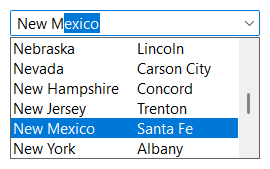
SetEditSearchMode defines the search mode. SetEditSearchColumn defines the column whose cell text is searched (the default is column 0). With the value -1, the first displayed column is searched, which follows the columns as they are reordered. All searches performed by the control ignore upper/lowercase differences and compare text using the locale defined using SetLocale. If the fSelectEnabledItemsOnly member of the SFTBOX_CONTROL structure is set, disabled items are not found. The default search mode is SFTBOX_SEARCH_AUTO for all combo box styles.
Each time the user changes the text in the edit control portion, the combo box searches all items, starting with the first item, based on the search mode:
| Mode | Description |
|---|---|
| SFTBOX_SEARCH_AUTO | The combo box searches for an item whose cell text matches the text entered exactly. If one is found, it becomes the selected item and its cell text replaces the text entered; the caret remains where it was, so the user can continue typing. Otherwise, the combo box has no selected item (GetCurSel returns -1) and the text entered remains unchanged. This is the default. |
| SFTBOX_SEARCH_FIRST | The combo box searches for the first item whose cell text starts with the text entered. If one is found, it becomes the selected item and is scrolled into view in the dropdown portion. The text entered remains unchanged. If no item is found, the combo box has no selected item. |
| SFTBOX_SEARCH_AUTOCOMPLETE | The combo box searches for the first item whose cell text starts with the text entered. If one is found, it becomes the selected item, is scrolled into view in the dropdown portion and its cell text replaces the text entered. The portion of the text that was added by the combo box is selected in the edit control, so it is replaced as the user continues to type. If no item is found, the combo box has no selected item and the text entered remains unchanged. |
| SFTBOX_SEARCH_NONE | The combo box does not search. The selected item does not change as the user enters text. |
| SFTBOX_SEARCH_USER | The combo box does not search. The application is expected to search and select an item in response to the SFTBOXN_EDITCHANGE notification. |
The modes SFTBOX_SEARCH_AUTO2, SFTBOX_SEARCH_FIRST2 and SFTBOX_SEARCH_AUTOCOMPLETE2 work like SFTBOX_SEARCH_AUTO, SFTBOX_SEARCH_FIRST and SFTBOX_SEARCH_AUTOCOMPLETE, but dependent items of a collapsed parent item are not searched.
With SFTBOX_SEARCH_AUTOCOMPLETE (or SFTBOX_SEARCH_AUTOCOMPLETE2), the text is not completed after the user presses the Backspace or Delete key, so characters can be removed. The item matching the remaining text is still selected. The text is also not completed if the column searched uses the SFTBOX_WRAP style, in which case SFTBOX_SEARCH_AUTOCOMPLETE is equivalent to SFTBOX_SEARCH_FIRST.
With SFTBOX_SEARCH_NONE and SFTBOX_SEARCH_USER, the application can change the text of the edit control while handling the SFTBOXN_EDITCHANGE and SFTBOXN_EDITUPDATE notifications, without causing additional notifications.
SFTBOXN_SELCHANGE is sent to the parent window when the selected item changes as a result of a search, followed by SFTBOXN_EDITCHANGE. Using the fAutoDropOnInput member of the SFTBOX_CONTROL structure, the dropdown portion can be shown automatically as the user starts typing.
The characters typed while the combo box has the input focus are used to locate an item in the dropdown portion. While the dropdown portion is hidden, the item found becomes the selected item immediately: the static portion is updated and SFTBOXN_SELCHANGE is sent. While the dropdown portion is shown, the item found is selected in the dropdown portion and is accepted when the user closes the dropdown portion, for example using the Enter key.
| Mode | Description |
|---|---|
| SFTBOX_SEARCH_AUTO SFTBOX_SEARCH_AUTOCOMPLETE | The characters typed in quick succession are collected and the first item whose cell text starts with these characters is selected. A pause of about one second between characters starts a new search. If no item matches, the characters typed are ignored until the next search starts. |
| SFTBOX_SEARCH_FIRST | Each character typed selects the next item following the currently selected item whose cell text starts with this character. The search ends at the last item. |
| SFTBOX_SEARCH_AUTO2 SFTBOX_SEARCH_AUTOCOMPLETE2 | Same as SFTBOX_SEARCH_AUTO, but dependent items of a collapsed parent item are not searched. |
| SFTBOX_SEARCH_FIRST2 | Same as SFTBOX_SEARCH_FIRST, but dependent items of a collapsed parent item are not searched. |
| SFTBOX_SEARCH_NONE SFTBOX_SEARCH_USER | The characters typed are ignored. An application can implement its own search using the NM_SFTBOX_CHAR notification. |
The following functions search the cell text of a column. All functions accept the index of the item after which the search starts (-1 to start with the first item) and can optionally continue at the first item once the last item has been searched (fWrap). Without wrapping, a search that starts after the last item finds no item. They return the index of the item found or -1. The text is compared using the locale defined using SetLocale.
| Function | Cell text | Upper/lowercase |
|---|---|---|
| FindString, SelectString | starts with the string | ignored |
| FindStringCase, SelectStringCase | starts with the string | must match |
| FindStringExact, SelectStringExact | equals the string | ignored |
| FindStringExactCase, SelectStringExactCase | equals the string | must match |
| FindStringEx | defined by a parameter | defined by a parameter |
The FindString functions return the item found. The SelectString functions also select the item found and scroll it into view. If no item is found, the SelectString functions remove the current selection.
FindItem searches for an item using its item data value (see SetItemData).

 On
 Off