

The dropdown button of a date field control (SftDate), the F4 key and Alt+Down open the dropdown. It shows a calendar, a time selection, or a calendar and a time selection side by side.
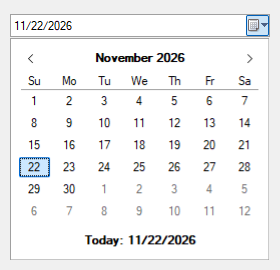
The DropDownContent property defines what the dropdown shows:
| Value | Dropdown |
|---|---|
| contentSftDateAuto (default) | A calendar for a format with date parts, a time selection for a format with time parts only, or both for a format with date and time parts. |
| contentSftDateCalendar | A calendar. |
| contentSftDateTime | A time selection (see Time List and Clock). |
| contentSftDateCalendarAndTime | A calendar and a time selection, with an OK button. |
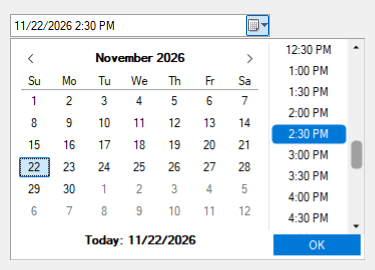
A calendar alone closes the dropdown when the user clicks a date or the Today button; in range mode it closes when the last date of the range is clicked, and the Today button selects today as a range of one day (see Date Ranges). A time selection alone closes it when the user chooses a time. With a calendar and a time selection, the OK button and the Enter key close it. The value of the field changes when the dropdown closes this way; the parts of the value the dropdown does not show are kept. The Escape key, a click outside the dropdown and the field losing the input focus close it without changing the value. The dropdown also closes when the window the field is on is moved, sized or deactivated.
The dropdown never takes the input focus: the field keeps it while the dropdown is open, and the keyboard works in the dropdown. The arrow keys, Page Up and Page Down move in the calendar or the time selection, Tab switches between the calendar and the time selection, and Enter accepts the value (see Keyboard Interface). The section that has the keyboard shows a dotted focus outline, around the focused date or around the current time.
The dropdown calendar is defined by the SftDateCalendar object returned by the field's Calendar property, like the calendar of a month calendar control: the number of months (MonthsAcross, MonthsDown), week numbers, the first day of the week, the views, the Today and Clear buttons, special dates and colors. The field raises the DayFormatting event for each day the dropdown calendar shows (see Day Formatting). The calendar shows the field's value, or the month of today's date when the field is empty, and it offers only the dates within the field's limits.
sftDate1.Calendar.MonthsAcross = 2;
sftDate1.Calendar.ShowWeekNumbers = true;
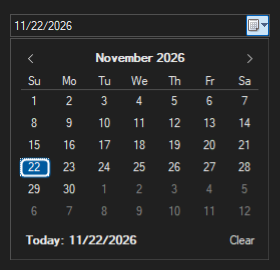
The dropdown follows the field's dark mode and high contrast settings.

 On
 Off