

Values entered by the user are checked in three steps:
Values set by the application in code do not raise the ValueValidating event.
The ValueValidatingEventArgs.NewValue property holds the value the user entered, or null when the user empties the field; in range mode, ValueValidatingEventArgs.NewRangeEnd holds the last date of the range. Setting ValueValidatingEventArgs.Cancel refuses the value, and the field shows the previous value again. Changing NewValue or NewRangeEnd accepts a different value instead.
This example refuses Saturdays and Sundays:
C#
private void sftDate1_ValueValidating(object sender, ValueValidatingEventArgs e) {
    if (e.NewValue.HasValue && (e.NewValue.Value.DayOfWeek == DayOfWeek.Saturday || e.NewValue.Value.DayOfWeek == DayOfWeek.Sunday))
        e.Cancel = true;
}
VB
Private Sub SftDate1_ValueValidating(sender As Object, e As ValueValidatingEventArgs) Handles SftDate1.ValueValidating
    If e.NewValue.HasValue AndAlso (e.NewValue.Value.DayOfWeek = DayOfWeek.Saturday OrElse e.NewValue.Value.DayOfWeek = DayOfWeek.Sunday) Then
        e.Cancel = True
    End If
End Sub
In a calendar, including the dropdown calendar of a field, days can be made unavailable: the CalendarClass.DisabledDaysOfWeek property disables days of the week, a special date with its SpecialDateClass.Enabled property cleared disables a day (see Special Dates), and the DayFormatting event can disable any day (see Day Formatting). Disabled days are shown in the CalendarClass.DisabledForeColor color and cannot be selected.
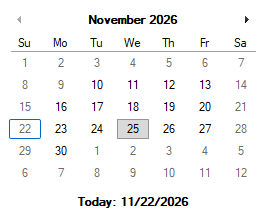
These settings apply to the calendar only. A field's ValueValidating event refuses such days when the user types them.
A text the user types in a free-form field or pastes into a field can be parsed by the application in the SftDate.TextParsing event before the field parses it (see Editing).

 On
 Off