Overview
Depending on the programming language used, the steps necessary to add a tree control to an application differ somewhat, but the following steps outline the basic method:
First, a tree control is added to a dialog using a resource editor (see "Creating a Dialog Resource"). When the dialog is later used in an application, the tree control is automatically created and can be accessed using the supplied API. A tree control can also be created outside of a dialog. This is documented in the language specific programming sections "Using C" and "Using C++/MFC".
Once the tree control has been created, the API functions documented in sections "C/C++ API" and "C/C++ API (By Category)" can be used to add items, define attributes, enable tree components, etc. The following samples create a very minimal tree control with three items as pictured below. This example can easily be extended by adding a few calls to define and other tree components to change the appearance of the tree control.
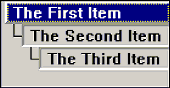
Note: SftTree/DLL Wizard should be used to design the tree control look. With the SftTree/DLL Wizard, most source code is generated for you.
SftTree/DLL 8.0 supports built-in accessibility: the tree is exposed to screen readers as a UI Automation data grid (see Accessibility (Screen Readers)), follows the Windows "Choose your mode" setting for dark mode (see Dark Mode), honors the Windows High Contrast accessibility setting (see High Contrast), and is fully Per-Monitor v2 DPI aware (see Per-Monitor DPI and Scaling).
C Sample
HWND hwndTree;
int index;
hwndTree = GetDlgItem(hwndDialog, IDC_TREE); // Get the tree window handle
SftTree_SetShow3D(hwndTree, TRUE); // Use 3D display mode
index = SftTree_AddString(hwndTree, "The First Item");
index = SftTree_AddString(hwndTree, "The Second Item");
SftTree_SetItemLevel(hwndTree, index, 1);
index = SftTree_AddString(hwndTree, "The Third Item");
SftTree_SetItemLevel(hwndTree, index, 2);
SftTree_RecalcHorizontalExtent(hwndTree); // For optimal horizontal scrolling
C++/MFC Sample
CSftTree m_Tree;
int index;
m_Tree.SubclassDlgItem(IDC_TREE, this); // Connect C++ object to window
m_Tree.SetShow3D(TRUE); // Use 3D display mode
index = m_Tree.AddString("The First Item");
index = m_Tree.AddString("The Second Item");
m_Tree.SetItemLevel(index, 1);
index = m_Tree.AddString("The Third Item");
m_Tree.SetItemLevel(index, 2);
m_Tree.RecalcHorizontalExtent(); // For optimal horizontal scrolling



 On
On Off
Off