# SftMask/DLL 7.0 — Full Documentation
> SftMask/DLL is a DLL-based masked edit control for the Windows™ operating system, offering easy to use data entry with edit masks, date input with a dropdown calendar, numeric input with a dropdown calculator, spin buttons and autocomplete.
Online documentation: https://softelvdm.com/Documentation/SftMask%20DLL%207%200
Complete API reference (separate file): https://softelvdm.com/Vault/Softelvdm.com/llms/SftMask-DLL-7.0-reference.txt
## SftMask/DLL - Masked Edit Control
*Source: https://softelvdm.com/Documentation/SftMask%20DLL%207%200/Topic/1_product_description*
SftMask/DLL is a DLL-based [masked edit control](https://softelvdm.com/Documentation/SftMask%20DLL%207%200/Topic/g_maskededitcontrol) for the Windows™ operating system, offering easy to use data entry with [edit masks](https://softelvdm.com/Documentation/SftMask%20DLL%207%200/Topic/g_editmask), date input with a dropdown [calendar](https://softelvdm.com/Documentation/SftMask%20DLL%207%200/Topic/g_popupcalendar), numeric input with a dropdown [calculator](https://softelvdm.com/Documentation/SftMask%20DLL%207%200/Topic/g_popupcalculator), [spin buttons](https://softelvdm.com/Documentation/SftMask%20DLL%207%200/Topic/g_updownbuttons) and [autocomplete](https://softelvdm.com/Documentation/SftMask%20DLL%207%200/Topic/g_autocomplete).
### Masked Edit Control
SftMask/DLL offers many features; from a [simple edit control](https://softelvdm.com/Documentation/SftMask%20DLL%207%200/Topic/g_simpleeditcontrol) replacement to fully validated, formatted data entry with popup windows and visual error feedback.
- [SftMask/DLL Wizard](https://softelvdm.com/Documentation/SftMask%20DLL%207%200/Topic/g_wizard) for designing masked edit controls and generating run-time code
- Edit masks built from literal characters and input field tokens (digits, letters, character sets, numeric fields, date and time fields)
- Numeric input fields with digit limits, fractional digits, minimum/maximum ranges, group formatting and leading zeros
- Date and time input using the user's locale formats, with automatic 2-digit year adjustment
- Dropdown calendar for date input, with configurable first day of week, date range, week numbers and bold dates
- Dropdown calculator for numeric input, invoked by simply typing an operator (+, -, * or /)
- Up-down buttons (spin buttons) for numeric, date and time fields
- Autocomplete with suggest and append modes, based on previously entered text or real file and folder names, with an optional persistent save file and programmatic seeding
- [Built-in caption](https://softelvdm.com/Documentation/SftMask%20DLL%207%200/Topic/g_builtincaption) (left, top, right or bottom of the edit area) with independent font, colors, alignment and transparency
- [Label](https://softelvdm.com/Documentation/SftMask%20DLL%207%200/Topic/g_label) displayed inside the edit area (e.g., a currency symbol or unit), with automatic locale-based currency placement
- [Input validation](https://softelvdm.com/Documentation/SftMask%20DLL%207%200/Topic/g_inputvalidation) with custom validation, error messages and an automatic [error image](https://softelvdm.com/Documentation/SftMask%20DLL%207%200/Topic/g_errorimage) (empty, invalid, required)
- [Formatted text](https://softelvdm.com/Documentation/SftMask%20DLL%207%200/Topic/g_builtinformatting) displayed while the control does not have the input focus
- [Default text](https://softelvdm.com/Documentation/SftMask%20DLL%207%200/Topic/g_defaulttext) automatically applied to an empty control (including =Today, =Now and similar special values)
- Insert and overtype input modes, per control, per entry or application-global
- Entry [selection](https://softelvdm.com/Documentation/SftMask%20DLL%207%200/Topic/g_selection) behavior (select all, home, end) when the control receives the input focus
- Automatic advance to the next input field and next control as data is entered
- Clipboard support with or without literal characters, plus [undo](https://softelvdm.com/Documentation/SftMask%20DLL%207%200/Topic/g_undo)
- Password input positions that display a substitute character
- [Themes](https://softelvdm.com/Documentation/SftMask%20DLL%207%200/Topic/g_using_themes) support
- Complete implementation, not a sub/superclassed Windows edit control
- Support for C and C++ (MFC) using Visual Studio
- Support for Windows 10 and above, 64-bit, 32-bit and ARM64 applications
- [Windows dark mode](https://softelvdm.com/Documentation/SftDarkMode/Topic/1_main) support, tracking the Windows "Choose your mode" setting automatically, including all popup windows (calendar, calculator, autocomplete)
- [Windows High Contrast](https://softelvdm.com/Documentation/SftMask%20DLL%207%200/Topic/g_highcontrast) [accessibility](https://softelvdm.com/Documentation/SftMask%20DLL%207%200/Topic/g_accessibility) support
- Per-Monitor v2 [DPI](https://softelvdm.com/Documentation/SftMask%20DLL%207%200/Topic/g_dpi) awareness with image and pixel scaling
- Built-in UI Automation provider for screen readers (Narrator, NVDA, JAWS)
- Documentation for AI coding assistants - an offline, full-text [API](https://softelvdm.com/Documentation/SftMask%20DLL%207%200/Topic/i_api) reference formatted for large-language-model grounding, plus an AGENTS.md pointer file, so assistants such as Claude, GitHub Copilot and Cursor can answer questions and generate code against the complete API
### SftMask/DLL Wizard Application
The SftMask/DLL Wizard allows you to design and test a masked edit control without any programming. The edit mask, edit styles, caption, label, validation, calendar, calculator, autocomplete, colors and other attributes are just a few of the items you can customize. Once you are satisfied with your masked edit control, the SftMask/DLL Wizard can even generate the required run-time code for C or C++ with MFC. So your programming effort is kept to a minimum.
### Source Code
The source code for the MFC classes for masked edit control access is supplied. Any application that you develop can use SftMask/DLL royalty-free (some restrictions apply), as long as only the DLL is shipped with your application.
### Languages Supported
SftMask/DLL supports C, C++ and other languages when using the standard SendMessage Windows API. The DLLs can be called using the definitions provided in the supplied header file. In addition, SftMask/DLL is shipped with class definitions which support the Microsoft Foundation Class Library (MFC).
### Environments Supported
- 64-bit support when running Windows 10 and above with Intel 64-bit processors
- 32-bit applications on Windows 10 and above
- ARM64 support when running Windows 11 and above on ARM64 processors
UNICODE support is available for all platforms.
The product supports the same easy to use API on all platforms.
### Royalties
Any application that you develop can use SftMask/DLL royalty-free in run-time only mode; design-time features are not available. Each user (developer) who needs access to any portion of the product must license a copy of SftMask/DLL.
### AI / LLM Documentation
The complete SftMask/DLL documentation is also published in an AI/LLM-readable format, following the [llms.txt convention](https://llmstxt.org). The index covering all Softel vdm products is at [https://softelvdm.com/llms.txt](https://softelvdm.com/llms.txt).
The product installation includes an AGENTS.md file at the installation root, which points AI coding assistants at the product's online guide and API reference. The documentation is always read online, as it is updated between product releases.
## Installing SftMask/DLL
*Source: https://softelvdm.com/Documentation/SftMask%20DLL%207%200/Topic/g_installation*
When you are ready to install SftMask/DLL:
1. Run the setup application - The download location is provided either with your license information at the time of purchase or you can download the product demo from our web site. Both the product and demo setup applications are identical and can be used interchangeably.
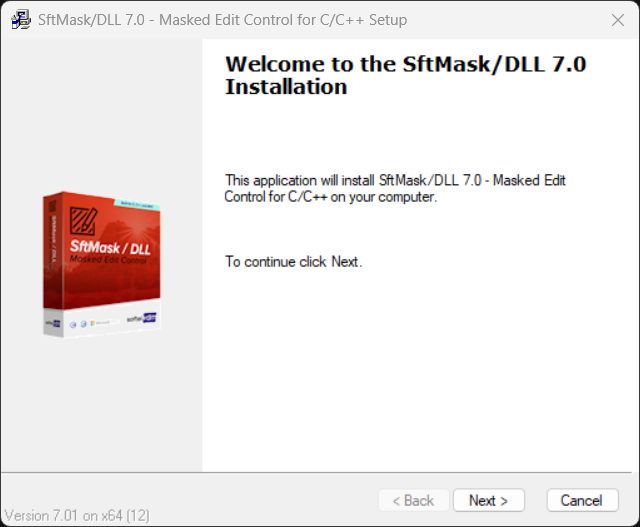
2. Follow the instructions on the installation dialogs. Please note that the single developer version of SftMask/DLL can only be installed by one user on one system. Multiple developer licenses and site licenses are available. Contact Softel vdm, Inc. for more information.
3. During the installation, you will be prompted to register the product using the License Manager application. Without proper registration, the product will not run. Once you are a registered user, you can take advantage of our [product support](https://softelvdm.com/Documentation/SftMask%20DLL%207%200/Topic/g_contactsoftel), such as free maintenance versions, and you will receive information regarding new releases.
4. Once SftMask/DLL has been successfully installed, you will find a new program group * SftMask DLL 7.0*. Entries for the SftMask/DLL sample applications have been added.
## Components
*Source: https://softelvdm.com/Documentation/SftMask%20DLL%207%200/Topic/g_components*
A SftMask control is composed of several areas. Understanding the areas makes it easier to choose which fields on [SFTMASK_CONTROL](https://softelvdm.com/Documentation/SftMask%20DLL%207%200/Topic/struct_sftmask_control) to set for a given effect. The [HitTest](https://softelvdm.com/Documentation/SftMask%20DLL%207%200/Topic/function_hittest) function reports which area is at a given location (see SFTMASK_AREA Constants).
### Control areas
- **[Caption area](https://softelvdm.com/Documentation/SftMask%20DLL%207%200/Topic/g_builtincaption)** - the optional built-in caption, displayed left, top, right or below the edit area. See Built-In Caption.
- **Edit area** - the data entry area, displaying literals, input fields and the optional label (see [Label](https://softelvdm.com/Documentation/SftMask%20DLL%207%200/Topic/g_label)). Unfilled input positions show the prompt character and can be underlined.
- **Up-down buttons** - [spin buttons](https://softelvdm.com/Documentation/SftMask%20DLL%207%200/Topic/g_updownbuttons) for numeric, date and time fields (*iEditStyle* = [SFTMASK_EDITUPDOWN](https://softelvdm.com/Documentation/SftMask%20DLL%207%200/Topic/def_sftmask_editstyle)). See Up/Down Buttons.
- **[Drop down button](https://softelvdm.com/Documentation/SftMask%20DLL%207%200/Topic/g_popupcalendar)** - opens the popup calendar for date fields (*iEditStyle* = SFTMASK_EDITCALENDARDROPDOWN). See Popup Calendar.
- **[Ellipse button](https://softelvdm.com/Documentation/SftMask%20DLL%207%200/Topic/g_ellipsebuttons)** - a "..." button with an application-defined action (*iEditStyle* = SFTMASK_EDITELLIPSE). See Ellipse Buttons.
- **[Error image](https://softelvdm.com/Documentation/SftMask%20DLL%207%200/Topic/g_errorimage) area** - the optional error indicator to the left or right of the edit area. See Error Image.
### Popup windows
- **Popup calendar** - dropdown date [selection](https://softelvdm.com/Documentation/SftMask%20DLL%207%200/Topic/g_selection) for date fields. See Popup Calendar.
- **[Popup calculator](https://softelvdm.com/Documentation/SftMask%20DLL%207%200/Topic/g_popupcalculator)** - dropdown calculator for numeric fields defined with the C subtoken. See Popup Calculator.
- **[Autocomplete](https://softelvdm.com/Documentation/SftMask%20DLL%207%200/Topic/g_autocomplete) window** - dropdown suggestion list based on previously entered text or file/folder names. See AutoComplete.
### When theme is active
When *iUseThemes* is enabled, Windows paints the edit field frame; the control draws contents, caption and buttons. See Using [Themes](https://softelvdm.com/Documentation/SftMask%20DLL%207%200/Topic/g_using_themes).
### When dark mode or high contrast is active
Theme-driven chrome is suppressed. The control and all its popup windows use a dark palette ([dark mode](https://softelvdm.com/Documentation/SftMask%20DLL%207%200/Topic/g_darkmode)) or the user's system colors ([high contrast](https://softelvdm.com/Documentation/SftMask%20DLL%207%200/Topic/g_highcontrast)). See Dark Mode and High Contrast.
See Also HitTest | SFTMASK_AREA Constants | SFTMASK_CONTROL
## Masked Edit Control
*Source: https://softelvdm.com/Documentation/SftMask%20DLL%207%200/Topic/g_maskededitcontrol*
By defining an [edit mask](https://softelvdm.com/Documentation/SftMask%20DLL%207%200/Topic/g_editmask) (*lpszMask* field of the [SFTMASK_CONTROL](https://softelvdm.com/Documentation/SftMask%20DLL%207%200/Topic/struct_sftmask_control) structure), extensive [input validation](https://softelvdm.com/Documentation/SftMask%20DLL%207%200/Topic/g_inputvalidation) and formatting is available. The mask string is composed of literal characters and of tokens and subtokens defining each input field. See Edit Masks for the complete token reference.
A number of different input fields can be defined using tokens. Literal characters can also be added to the mask. These characters are displayed by the masked edit control, but the user cannot modify them. Only input fields allow data entry.
Both input fields and literal characters are displayed using the font defined using the WM_SETFONT message. Input fields can be underlined using the *fPromptUnderline* and *fPromptUnderlineNoFocus* fields.
Input fields use the colors defined using the *colorBg* and *colorFg* fields. Literal characters are displayed using the colors defined using the *colorBg* and *colorMaskFg* fields.
Samples
Visual Feedback
FormattedText - Valid Contents
### Samples
#### Telephone Number

This example allows entry of a telephone number. Area codes cannot start with a "0", only the digits 1 through 9 are acceptable in the first position.
```
SFTMASK_CONTROL Ctl;
Ctl.cbSize = sizeof(SFTMASK_CONTROL);
SftMask_GetControlInfo(hwndCtl, &Ctl);
Ctl.lpszMask = (LPTSTR) TEXT("\\([M1-9]##\\) ###\\-####");
SftMask_SetControlInfo(hwndCtl, &Ctl);
```
#### Social Security Number
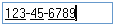
This example allows entry of a social security number.
```
SFTMASK_CONTROL Ctl;
Ctl.cbSize = sizeof(SFTMASK_CONTROL);
SftMask_GetControlInfo(hwndCtl, &Ctl);
Ctl.lpszMask = (LPTSTR) TEXT("###\\-##\\-####");
SftMask_SetControlInfo(hwndCtl, &Ctl);
```
#### Date and Time
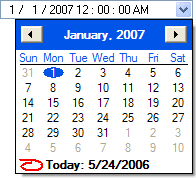
One control is used to enter the date and time of an event. A [popup calendar](https://softelvdm.com/Documentation/SftMask%20DLL%207%200/Topic/g_popupcalendar) is available.
```
SFTMASK_CONTROL Ctl;
Ctl.cbSize = sizeof(SFTMASK_CONTROL);
SftMask_GetControlInfo(hwndCtl, &Ctl);
Ctl.lpszMask = (LPTSTR) TEXT("$D $T");
Ctl.fAutoAdvance = TRUE;
Ctl.fTabAdvance = TRUE;
Ctl.iEditStyle = SFTMASK_EDITCALENDARDROPDOWN;
SftMask_SetControlInfo(hwndCtl, &Ctl);
// set the initial date/time
DATE Dt;
SYSTEMTIME SysTime = { 1976, 7, 0, 4, 10, 0, 0, 0 };
SystemTimeToVariantTime(&SysTime, &Dt);
SftMask_Contents_SetDateTime(hwndCtl, &Dt);
```
#### Currency
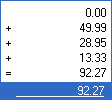
This example shows entry of a currency value with a [popup calculator](https://softelvdm.com/Documentation/SftMask%20DLL%207%200/Topic/g_popupcalculator) and up-down buttons ([spin buttons](https://softelvdm.com/Documentation/SftMask%20DLL%207%200/Topic/g_updownbuttons)). The label "|" displays the currency symbol defined by the user's locale, placed before or after the amount according to the locale's currency format.
```
SFTMASK_CONTROL Ctl;
Ctl.cbSize = sizeof(SFTMASK_CONTROL);
SftMask_GetControlInfo(hwndCtl, &Ctl);
Ctl.iAlignment = ES_RIGHT;
Ctl.lpszMask = (LPTSTR) TEXT("$^C-,8.2");
Ctl.lpszLabel = (LPTSTR) TEXT("|");
Ctl.iLabelPosition = SFTMASK_LABELPOSITION_AUTO;
Ctl.iEditStyle = SFTMASK_EDITUPDOWN;
SftMask_SetControlInfo(hwndCtl, &Ctl);
```
#### Percentage

This example allows entry of a percentage value (0-100) with up-down buttons (spin buttons).
```
SFTMASK_CONTROL Ctl;
Ctl.cbSize = sizeof(SFTMASK_CONTROL);
SftMask_GetControlInfo(hwndCtl, &Ctl);
Ctl.iAlignment = ES_RIGHT;
Ctl.lpszMask = (LPTSTR) TEXT("$^3(0,100)");
Ctl.iEditStyle = SFTMASK_EDITUPDOWN;
Ctl.lpszLabel = (LPTSTR) TEXT("%");
Ctl.iLabelPosition = SFTMASK_LABELPOSITION_RIGHT;
SftMask_SetControlInfo(hwndCtl, &Ctl);
```
#### IP Address

This example allows entry of an IP address, consisting of 4 input fields. As the user enters data, the Tab key or "." can be used to move to the next field.
```
SFTMASK_CONTROL Ctl;
Ctl.cbSize = sizeof(SFTMASK_CONTROL);
SftMask_GetControlInfo(hwndCtl, &Ctl);
Ctl.iEditStyle = SFTMASK_EDITUPDOWN;
Ctl.lpszMask = (LPTSTR) TEXT("$I^03(0,255)\\.$I^03(0,255)\\.$I^03(0,255)\\.$I^03(0,255)");
Ctl.fAutoAdvance = TRUE;
Ctl.fTabAdvance = TRUE;
SftMask_SetControlInfo(hwndCtl, &Ctl);
```
### Visual Feedback - Valid Contents

It is possible to provide visual feedback to the user whether the current data entered is valid. In the following example, a telephone number is to be entered. The control's contents are displayed in red until the entire telephone number has been entered. Once the contents are valid, they are displayed using the default window background and foreground colors. The [SFTMASKN_CHANGE](https://softelvdm.com/Documentation/SftMask%20DLL%207%200/Topic/i_notifications) notification is sent to the parent window whenever the contents change.
```
case SFTMASKN_CHANGE: {
SFTMASK_CONTROL Ctl;
Ctl.cbSize = sizeof(SFTMASK_CONTROL);
SftMask_GetControlInfo(hwndCtl, &Ctl);
if (SftMask_IsValid(hwndCtl)) {
Ctl.colorBg = SFTMASK_NOCOLOR; // default colors
Ctl.colorFg = SFTMASK_NOCOLOR;
Ctl.colorMaskFg = SFTMASK_NOCOLOR;
} else {
Ctl.colorBg = RGB(255,255,255);
Ctl.colorFg = RGB(255,0,0);
Ctl.colorMaskFg = RGB(255,0,0);
}
SftMask_SetControlInfo(hwndCtl, &Ctl);
break;
}
```
For a more noticeable effect, the *colorBgInvalid* and *colorFgInvalid* fields can be used instead, which are applied automatically while the contents are invalid.
### Formatted Text - Valid Contents
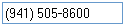
The *lpszFormattedText* field is used to specify the control's displayed text while the control does **not** have the input focus. This could be used for mandatory fields to highlight that the information has not yet been entered. In the following example, a telephone number is to be entered. As long as the control does not have the input focus and the telephone number has not yet been completely entered, the text "Need phone #" is displayed.
If the mouse cursor moves over the control, the input data is displayed, even if the control does not have the input focus.
```
case SFTMASKN_CHANGE: {
SFTMASK_CONTROL Ctl;
Ctl.cbSize = sizeof(SFTMASK_CONTROL);
SftMask_GetControlInfo(hwndCtl, &Ctl);
if (SftMask_IsValid(hwndCtl))
Ctl.lpszFormattedText = (LPTSTR) TEXT("");
else
Ctl.lpszFormattedText = (LPTSTR) TEXT("Need phone #");
SftMask_SetControlInfo(hwndCtl, &Ctl);
break;
}
```
See Also Edit Masks | [Simple Edit Control](https://softelvdm.com/Documentation/SftMask%20DLL%207%200/Topic/g_simpleeditcontrol) | Input Validation | SFTMASK_CONTROL
## Edit Masks
*Source: https://softelvdm.com/Documentation/SftMask%20DLL%207%200/Topic/g_editmask*
The edit mask, defined using the *lpszMask* field of the [SFTMASK_CONTROL](https://softelvdm.com/Documentation/SftMask%20DLL%207%200/Topic/struct_sftmask_control) structure, controls [input validation](https://softelvdm.com/Documentation/SftMask%20DLL%207%200/Topic/g_inputvalidation) and formatting. The mask consists of literal characters, tokens and subtokens which are used to validate data input. If an empty string is specified, the control acts as a [Simple Edit Control](https://softelvdm.com/Documentation/SftMask%20DLL%207%200/Topic/g_simpleeditcontrol).
Literal characters are displayed by the [masked edit control](https://softelvdm.com/Documentation/SftMask%20DLL%207%200/Topic/g_maskededitcontrol), but the user cannot modify them. Only input fields and input positions allow data entry. Input fields can be underlined using the *fPromptUnderline* and *fPromptUnderlineNoFocus* fields; unfilled input positions display the prompt character (*chPromptChar*) while the control has the input focus.
The mask can use one or more of the following tokens and literal characters:
### Numeric Input Field Tokens
The $ token represents a numeric input field. Multiple numeric fields are possible when defining a mask. Using value tokens (see below), the contents of individual input fields can be set and retrieved using Contents_GetValue and Contents_SetValue. If a numeric input field is used, the [autocomplete](https://softelvdm.com/Documentation/SftMask%20DLL%207%200/Topic/g_autocomplete) feature is not available for the control.
| | | | |
| --- | --- | --- | --- |
| $I | | | Numeric field (integer, allows entry of leading 0), additional subtokens define the numeric format, which appear in the following order (some are optional): |
| | ^ | (optional) | Field allows up-down buttons ([spin buttons](https://softelvdm.com/Documentation/SftMask%20DLL%207%200/Topic/g_updownbuttons)). |
| | - | (optional) | Field allows negative numbers. |
| | , | (optional) | Use group formatting. |
| | 0 | (optional) | Format with leading zeros (affects formatted display only). |
| | *digits* | | Defines the allowable number of digits. |
| | (* min* ,* max* ) | (optional) | Minimum/maximum range. *Min* and *max* must be between -999,999 and 999,999. Cannot be used with fractional digits. |
| $ | | | Numeric field (integer or floating point, with optional [popup calculator](https://softelvdm.com/Documentation/SftMask%20DLL%207%200/Topic/g_popupcalculator), does not allow entry of leading 0), additional subtokens define the numeric format, which appear in the following order (some are optional): |
| | ^ | (optional) | Field allows up-down buttons (spin buttons). |
| | C | (optional) | Field supports the popup calculator. |
| | ( | (optional) | Field allows negative numbers and displays negative numbers using (*number*), cannot be used with -. |
| | - | (optional) | Field allows negative numbers, cannot be used with (. |
| | , | (optional) | Use group formatting. |
| | 0 | (optional) | Format with leading zeros (affects formatted display only). |
| | *digits* | | Defines the allowable number of digits. |
| | .* fracdigits* | (optional) | Defines the allowable number of fractional digits. |
| | (* min* ,* max* ) | (optional) | Minimum/maximum range. *Min* and *max* must be between -999,999 and 999,999. Cannot be used with fractional digits. |
| | | |
| --- | --- | --- |
| **Example:** | $I4 | 4 digit numeric input |
| | $I^4 | 4 digit numeric input with up-down buttons |
| | $I^2(10,49) | 2 digit numeric input with up-down buttons and a minimum, maximum range 10-49. |
| | $4 | 4 digit numeric input |
| | $^4 | 4 digit numeric input with up-down buttons |
| | $^2(10,49) | 2 digit numeric input with up-down buttons and a minimum, maximum range 10-49. |
| | $C(,8.2 | 8 digits, 2 fractional digits, signed input with popup calculator. |
| | $C(,8.2(100,10000) | 8 digits, 2 fractional digits, signed input with popup calculator, and minimum, maximum range 100-10000. |
### Single Position Tokens
The following tokens represent one single input position (i.e., one character).
| | |
| --- | --- |
| # | Mandatory digit (0-9). |
| 9 | Optional digit (0-9). |
| ? | Mandatory letter (A-Z or a-z). |
| @ | Optional letter (A-Z or a-z). |
| & | Mandatory character (any). |
| ~ | Optional character (any). |
| A | Mandatory digit (0-9) or letter (A-Z or a-z). |
| a | Optional digit (0-9) or letter (A-Z or a-z). |
| [M*chars*] | Defines one mandatory character using a character list or a character range. *chars* consists of one or multiple individual characters and/or one or multiple character ranges. Use \ to use a reserved character. |
| [O*chars*] | Defines one optional character using a character list or a character range. *chars* consists of one or multiple individual characters and/or one or multiple character ranges. |
| \*char* | An explicit literal character. |
| *any* | Any other character not defined as a token is automatically treated as a literal. |
| | | |
| --- | --- | --- |
| **Example:** | [Mabc] | Characters a, b, c are allowed. |
| | [MabcDEF1-4] | Characters a, b, c, D, E, F, 1, 2, 3, 4 are allowed. |
| | [MA-Z1-4] | Characters A through Z and 1 through 4 are allowed. |
| | [M$%\-\]] | Characters $, %, - and ] are allowed. |
| | [OA-Z1-4] | Characters A through Z and 1 through 4 are allowed (optional position). |
| | \$ | the $ character |
| | \\ | the \ character |
| | \A | the A character |
| | \V\a\l\u\e | the string "Value" |
### Time Field Tokens
The following tokens represent input fields related to time values. The contents of these input fields can be set and retrieved using Contents_GetDateTime and Contents_SetDateTime. Each time field token can only be used once when defining a mask. If a time field token is used, the autocomplete feature is not available for the control.
| | |
| --- | --- |
| $t | Time input (without seconds) using the default user locale, cannot be used with hours, minutes or seconds fields. If a time separator is used (as defined by the user locale), extra spaces may be added around the separator based on the *fPadding* field. |
| $T | Time input (with seconds) using the default user locale, cannot be used with hours, minutes or seconds fields. If a time separator is used (as defined by the user locale), extra spaces may be added around the separator based on the *fPadding* field. |
| $p | AM/PM input, used with user defined time fields. |
| $h | Hours field (1-12), used with user defined time fields. Only one hours token can be used per mask. |
| $hh | Hours field (1-12), displayed with a leading 0, used with user defined time fields. Only one hours token can be used per mask. |
| $H | Hours field (0-23), used with user defined time fields. Only one hours token can be used per mask. |
| $HH | Hours field (0-23), displayed with a leading 0, used with user defined time fields. Only one hours token can be used per mask. |
| $m | Minutes field (0-59), used with user defined time fields. Only one minutes token can be used per mask. |
| $mm | Minutes field (0-59), displayed with a leading 0, used with user defined time fields. Only one minutes token can be used per mask. |
| $s | Seconds field (0-59), used with user defined time fields. Only one seconds token can be used per mask. |
| $ss | Seconds field (0-59), displayed with a leading 0, used with user defined time fields. Only one seconds token can be used per mask. |
| : | The time separator defined by the default user locale. Extra spaces may be added around the separator based on the *fPadding* field. |
| | | |
| --- | --- | --- |
| **Example:** | $d $t | Date and time using user locale. |
| | $hh : $mm $p | User defined time format with hours, minutes, AM/PM. |
| | | In the above examples, Contents_GetDateTime and Contents_SetDateTime can be used to retrieve and set the time values. |
### Date Field Tokens
The following tokens represent input fields related to date values. The contents of these input fields can be set and retrieved using Contents_GetDateTime and Contents_SetDateTime. Each date field token can only be used once when defining a mask. If a date field token is used, the autocomplete feature is not available for the control.
| | |
| --- | --- |
| $d | Date input (with two digit year) using the default user locale, cannot be used with year, month or days fields. If a date separator is used (as defined by the user locale), extra spaces may be added around the separator based on the *fPadding* field. |
| $D | Date input (with four digit year) using the default user locale, cannot be used with year, month or days fields. If a date separator is used (as defined by the user locale), extra spaces may be added around the separator based on the *fPadding* field. |
| $yy | Year field (0-99), used with user defined date fields. Only one year token can be used per mask. |
| $yyyy | Year field (0-9999), used with user defined date fields. Only one year token can be used per mask. |
| $o | Month field (1-12), used with user defined date fields. Only one month token can be used per mask. |
| $oo | Month field (1-12), displayed with a leading 0, used with user defined date fields. Only one month token can be used per mask. |
| $a | Day field (1-31), used with user defined date fields. Only one day token can be used per mask. |
| $aa | Day field (1-31), displayed with a leading 0, used with user defined date fields. Only one day token can be used per mask. |
| / | The date separator defined by the default user locale. Extra spaces may be added around the separator based on the *fPadding* field. |
| | | |
| --- | --- | --- |
| **Example:** | $D $T | Date and time using user locale. |
| | $yyyy / $oo $aa | User defined date format with year, month, day. |
| | | In the above examples, Contents_GetDateTime and Contents_SetDateTime can be used to retrieve and set the date values. |
### Special Handling Tokens
These tokens don't represent input fields or positions, but affect the surrounding input positions:
| | |
| --- | --- |
| = | Shift break (inserting or deleting doesn't shift characters beyond this point). |
| . Any input positions or input fields between
will display the password character instead of the actual input data. |
| . Any input positions or input fields between will be translated to lowercase on input. |
| . Any input positions or input fields between will be translated to uppercase on input. |
| > | Ends terminates | 4 characters and one digit, displayed using the password character. |
| | | 4 characters and one digit, translated to lowercase on input, displayed using the password character. |
### Substitution Tokens
These tokens don't represent input fields. They are placeholders for substituted text.
| | |
| --- | --- |
| *\|* | The currency symbol defined by the default user locale. |
### Value Tokens
| | |
| --- | --- |
| !*number* | Defines a variable which can be retrieved and set using Contents_GetValue and Contents_SetValue. *Number* is in the range 0 through 9. The input fields or positions between the !*number* token and the matching !! token can be retrieved or set using Contents_GetValue and Contents_SetValue. This allows manipulation of portions of the input data without the need to know the exact position. |
| !! | Ends the Value variable definition. |
| | |
| --- | --- |
| **Example:** | Please see Contents_GetValue. |
See Also Masked Edit Control | Simple Edit Control | SFTMASK_CONTROL | Input Validation
## Simple Edit Control
*Source: https://softelvdm.com/Documentation/SftMask%20DLL%207%200/Topic/g_simpleeditcontrol*
SftMask/DLL can be used as a simple edit control. While most features are available, the control is used as a single line edit control replacement without a mask. By setting the *lpszMask* field of the [SFTMASK_CONTROL](https://softelvdm.com/Documentation/SftMask%20DLL%207%200/Topic/struct_sftmask_control) structure to an empty string, the edit control will accept any data entered up to the maximum number of characters defined using *nMaxLength*.
All other features are still available, such as [autocomplete](https://softelvdm.com/Documentation/SftMask%20DLL%207%200/Topic/g_autocomplete), [built-in caption](https://softelvdm.com/Documentation/SftMask%20DLL%207%200/Topic/g_builtincaption), hit testing, formatting features, etc., making it a much more powerful edit control than the standard edit control.
### Samples
#### Single Line Edit Control:
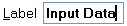
This example allows entry of up to 80 characters.
```
SFTMASK_CONTROL Ctl;
Ctl.cbSize = sizeof(SFTMASK_CONTROL);
SftMask_GetControlInfo(hwndCtl, &Ctl);
Ctl.lpszCaption = (LPTSTR) TEXT("&Label");
Ctl.captionnSizePercent = 33;
Ctl.fPromptUnderline = FALSE;
Ctl.lpszMask = (LPTSTR) TEXT("");
Ctl.nMaxLength = 80;
SftMask_SetControlInfo(hwndCtl, &Ctl);
```
#### Files/Directories:
This example allows entry of a file/directory name. Matching files and folders are suggested as the user types.
```
SFTMASK_CONTROL Ctl;
Ctl.cbSize = sizeof(SFTMASK_CONTROL);
SftMask_GetControlInfo(hwndCtl, &Ctl);
Ctl.lpszCaption = (LPTSTR) TEXT("Filename:");
Ctl.lpszMask = (LPTSTR) TEXT("");
Ctl.auto_iMode = SFTMASK_AUTOCOMPLETE_SUGGESTAPPEND;
Ctl.auto_iContents = SFTMASK_AUTOCOMPLETECONTENTS_FILESDIRS;
Ctl.auto_lpszDefaultDirectory = (LPTSTR) TEXT("C:\\");
SftMask_SetControlInfo(hwndCtl, &Ctl);
SftMask_AutoComplete_Refresh(hwndCtl); // show the list
```
#### Password:

This example allows entry of a password (max. 16 characters). The "*" character is displayed instead of the actual data entered.
```
SFTMASK_CONTROL Ctl;
Ctl.cbSize = sizeof(SFTMASK_CONTROL);
SftMask_GetControlInfo(hwndCtl, &Ctl);
Ctl.lpszCaption = (LPTSTR) TEXT("&Password");
Ctl.captionnSizePercent = 33;
Ctl.fPromptUnderline = FALSE;
Ctl.lpszMask = (LPTSTR) TEXT("");
Ctl.chPswdChar = TEXT('*');
Ctl.nMaxLength = 16;
SftMask_SetControlInfo(hwndCtl, &Ctl);
```
See Also [Masked Edit Control](https://softelvdm.com/Documentation/SftMask%20DLL%207%200/Topic/g_maskededitcontrol) | [Edit Masks](https://softelvdm.com/Documentation/SftMask%20DLL%207%200/Topic/g_editmask) | AutoComplete | SFTMASK_CONTROL
## Built-In Formatting
*Source: https://softelvdm.com/Documentation/SftMask%20DLL%207%200/Topic/g_builtinformatting*
Fields defined in a [masked edit control](https://softelvdm.com/Documentation/SftMask%20DLL%207%200/Topic/g_maskededitcontrol) are automatically formatted based on the defined [edit mask](https://softelvdm.com/Documentation/SftMask%20DLL%207%200/Topic/g_editmask) (*lpszMask* field of the [SFTMASK_CONTROL](https://softelvdm.com/Documentation/SftMask%20DLL%207%200/Topic/struct_sftmask_control) structure). Numeric fields support group formatting, leading zeros and negative number display; date and time fields are formatted using the user's locale.
The *lpszFormattedText* field can be used to override the default contents while the control does not have the input focus. The text is defined by the application. As soon as the masked edit control loses the input focus, the text defined by *lpszFormattedText* is displayed. If *lpszFormattedText* is set to an empty string or whenever the mouse cursor moves over the edit control, the formatted text based on the edit mask is displayed instead.
The [GetTextDisplay](https://softelvdm.com/Documentation/SftMask%20DLL%207%200/Topic/function_gettextdisplay) function can be used by an application to retrieve the control's contents as displayed, with or without literal characters, for example to store or further process the formatted representation.
See Also Masked Edit Control | Edit Masks | GetTextDisplay | SFTMASK_CONTROL
## Built-In Caption
*Source: https://softelvdm.com/Documentation/SftMask%20DLL%207%200/Topic/g_builtincaption*
SftMask/DLL provides an easy to use built-in caption which is displayed at a user-definable position, relative to the edit area (see the *captioniPosition* field of the [SFTMASK_CONTROL](https://softelvdm.com/Documentation/SftMask%20DLL%207%200/Topic/struct_sftmask_control) structure). The alignment of the caption can be defined both horizontally and vertically (using *captioniAlignment* and *captioniVerticalAlignment*). The text of the caption is defined using the *lpszCaption* field. The caption can be defined as transparent (using *captionfTransparent*), so the background of the enclosing dialog or window is used as background for the caption's text.
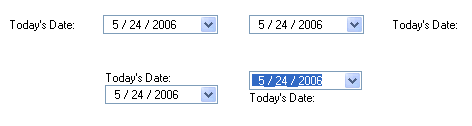
The caption can include an accelerator key. By using the & character in the *lpszCaption* field, the following character becomes an accelerator key. If the user types Alt plus the defined accelerator key, the [masked edit control](https://softelvdm.com/Documentation/SftMask%20DLL%207%200/Topic/g_maskededitcontrol) receives the input focus. For example, if *lpszCaption* is set to "Today's &Date", the displayed caption will read "Today's Date", i.e., the D is underlined. If the user types Alt+d, the masked edit control receives the input focus. To display an & character use "&&".
The caption uses the font defined using the *captionFont* field (or the control's font if none is set) and the colors defined using *captionColorBg*, *captionColorFg* and *captionColorFgGrayed*.
The caption can be hidden by setting the *captionnSizePercent* and *captionnWidth* fields to 0.
The size of the caption depends on the position of the caption as defined using the *captioniPosition* field and the *fAutoSize* and *captionnSizePercent* fields:
| Position | fAutoSize | captionnSizePercent | Description |
| --- | --- | --- | --- |
| [SFTMASK_POSITIONLEFT](https://softelvdm.com/Documentation/SftMask%20DLL%207%200/Topic/def_sftmask_position) | FALSE | 0-100 | The caption width is defined by the *captionnSizePercent* or *captionnWidth* fields. The width of the caption is the specified percentage of the overall control width. The edit area is displayed in the remaining area to the right of the caption. The height of the caption and the edit area is equivalent to the overall height of the control. |
| | TRUE | 0-100 | The caption width is defined by the *captionnSizePercent* or *captionnWidth* fields. The width of the caption is the specified percentage of the overall control width. The edit area is displayed in the remaining area to the right of the caption. The height of the caption and the edit area is automatically determined based on the attributes of the caption and edit area, such as the caption font and the control's font. |
| SFTMASK_POSITIONRIGHT | FALSE | 0-100 | The caption width is defined by the *captionnSizePercent* or *captionnWidth* fields. The width of the caption is the specified percentage of the overall control width. The edit area is displayed in the remaining area to the left of the caption. The height of the caption and the edit area is equivalent to the overall height of the control. |
| | TRUE | 0-100 | The caption width is defined by the *captionnSizePercent* or *captionnWidth* fields. The width of the caption is the specified percentage of the overall control width. The edit area is displayed in the remaining area to the left of the caption. The height of the caption and the edit area is automatically determined based on the attributes of the caption and edit area, such as the caption font and the control's font. |
| SFTMASK_POSITIONTOP | FALSE | 0-100 | The caption height is defined by the *captionnSizePercent* or *captionnWidth* fields. The height of the caption is the specified percentage of the overall control height. The edit area is displayed in the remaining area below the caption. The height of the edit area is automatically determined based on the attributes of the edit area, such as the control's font. The width of the caption and the edit area is equivalent to the overall width of the control. |
| | TRUE | 0-100 | The *captionnSizePercent* and *captionnWidth* fields are ignored. The edit area is displayed below the caption. The height of the caption and the edit area is automatically determined based on the attributes of the caption and edit area, such as the caption font and the control's font. The width of the caption and the edit area is equivalent to the overall width of the control. |
| SFTMASK_POSITIONBOTTOM | FALSE | 0-100 | The caption height is defined by the *captionnSizePercent* or *captionnWidth* fields. The height of the caption is the specified percentage of the overall control height. The edit area is displayed in the remaining area above the caption. The height of the edit area is automatically determined based on the attributes of the edit area, such as the control's font. The width of the caption and the edit area is equivalent to the overall width of the control. |
| | TRUE | 0-100 | The *captionnSizePercent* and *captionnWidth* fields are ignored. The edit area is displayed above the caption. The height of the caption and the edit area is automatically determined based on the attributes of the caption and edit area, such as the caption font and the control's font. The width of the caption and the edit area is equivalent to the overall width of the control. |
See Also [Label](https://softelvdm.com/Documentation/SftMask%20DLL%207%200/Topic/g_label) | SFTMASK_POSITION Constants | SFTMASK_VERTALIGN Constants | SFTMASK_CONTROL
## Label
*Source: https://softelvdm.com/Documentation/SftMask%20DLL%207%200/Topic/g_label*
In addition to the [built-in caption](https://softelvdm.com/Documentation/SftMask%20DLL%207%200/Topic/g_builtincaption), SftMask/DLL can display a label **inside** the edit area, at its left or right end. The input area is reduced so entered text never overlaps the label. The label is typically used for a unit or currency symbol, such as "%" or "USD".
The label text is defined using the *lpszLabel* field of the [SFTMASK_CONTROL](https://softelvdm.com/Documentation/SftMask%20DLL%207%200/Topic/struct_sftmask_control) structure. The special value "|" displays the currency symbol defined by the user's locale.
The label position is defined using the *iLabelPosition* field:
| | |
| --- | --- |
| [SFTMASK_LABELPOSITION_AUTO](https://softelvdm.com/Documentation/SftMask%20DLL%207%200/Topic/def_sftmask_labelposition) | The label is displayed at the left end of the edit area. If the label is the currency symbol ("\|"), it is placed before or after the amount according to the locale's currency format convention. This is the default. |
| SFTMASK_LABELPOSITION_LEFT | The label is displayed at the left end of the edit area. |
| SFTMASK_LABELPOSITION_RIGHT | The label is displayed at the right end of the edit area. |
The label is drawn using the control's font and follows the control's focus and invalid-contents foreground colors, as well as [dark mode](https://softelvdm.com/Documentation/SftMask%20DLL%207%200/Topic/g_darkmode) and [high contrast](https://softelvdm.com/Documentation/SftMask%20DLL%207%200/Topic/g_highcontrast) rendering.
```
SFTMASK_CONTROL Ctl;
Ctl.cbSize = sizeof(SFTMASK_CONTROL);
SftMask_GetControlInfo(hwndCtl, &Ctl);
Ctl.iAlignment = ES_RIGHT;
Ctl.lpszMask = (LPTSTR) TEXT("$C-,8.2");
Ctl.lpszLabel = (LPTSTR) TEXT("|"); // locale currency symbol
Ctl.iLabelPosition = SFTMASK_LABELPOSITION_AUTO;
SftMask_SetControlInfo(hwndCtl, &Ctl);
```
See Also Built-In Caption | SFTMASK_LABELPOSITION Constants | SFTMASK_CONTROL
## Default Text
*Source: https://softelvdm.com/Documentation/SftMask%20DLL%207%200/Topic/g_defaulttext*
The [masked edit control](https://softelvdm.com/Documentation/SftMask%20DLL%207%200/Topic/g_maskededitcontrol) can automatically fill an empty control with a default value, defined using the *lpszDefaultText* field of the [SFTMASK_CONTROL](https://softelvdm.com/Documentation/SftMask%20DLL%207%200/Topic/struct_sftmask_control) structure.
The default text is entered as if typed - each character is validated against the [edit mask](https://softelvdm.com/Documentation/SftMask%20DLL%207%200/Topic/g_editmask), so it must fit the mask.
The following special values are supported (case-insensitive):
| | |
| --- | --- |
| =Today | Today's date (and time) is entered into the date/time fields of the mask. |
| =Yesterday | Yesterday's date is entered. |
| =Tomorrow | Tomorrow's date is entered. |
| =Now | The current date and time is entered. |
The *iDefaultStyle* field defines when the default text is applied:
| | |
| --- | --- |
| [SFTMASK_DEFAULT_IMMEDIATE](https://softelvdm.com/Documentation/SftMask%20DLL%207%200/Topic/def_sftmask_default) | The moment the contents become empty, including while the user is editing - deleting all input instantly restores the default. This is the default setting. |
| SFTMASK_DEFAULT_DELAYED | Applied only when the empty control loses the input focus, so the user can clear the field and type something else without the default snapping back mid-edit. |
An application can apply the default text at any time using the [SetDefaultValue](https://softelvdm.com/Documentation/SftMask%20DLL%207%200/Topic/function_setdefaultvalue) function.
```
SFTMASK_CONTROL Ctl;
Ctl.cbSize = sizeof(SFTMASK_CONTROL);
SftMask_GetControlInfo(hwndCtl, &Ctl);
Ctl.lpszMask = (LPTSTR) TEXT("$D");
Ctl.lpszDefaultText = (LPTSTR) TEXT("=Today");
Ctl.iDefaultStyle = SFTMASK_DEFAULT_IMMEDIATE;
SftMask_SetControlInfo(hwndCtl, &Ctl);
```
See Also SetDefaultValue | SFTMASK_DEFAULT Constants | Edit Masks | SFTMASK_CONTROL
## Input Validation
*Source: https://softelvdm.com/Documentation/SftMask%20DLL%207%200/Topic/g_inputvalidation*
Input validation is an important part of any application as data entered by the user must be verified and validated. SftMask/DLL has a number of features designed to assist an application to validate input data.
Generally, a suitable [edit mask](https://softelvdm.com/Documentation/SftMask%20DLL%207%200/Topic/g_editmask) is defined using the *lpszMask* field of the [SFTMASK_CONTROL](https://softelvdm.com/Documentation/SftMask%20DLL%207%200/Topic/struct_sftmask_control) structure. Optionally, the *lpszMsgErrorEmpty* and *lpszMsgErrorInvalid* fields can be defined to provide error messages (*lpszMsgTitle* defines the message box title). SftMask/DLL will **never automatically** display an error message.
An application can use the [IsValid](https://softelvdm.com/Documentation/SftMask%20DLL%207%200/Topic/function_isvalid) function to determine if a control's input data is valid. If the equivalent [IsValidWithMsg](https://softelvdm.com/Documentation/SftMask%20DLL%207%200/Topic/function_isvalidwithmsg) function is used instead, a suitable error message is displayed (based on the *lpszMsgErrorEmpty* and *lpszMsgErrorInvalid* fields).
The [NM_SFTMASK_VALIDATIONERROR](https://softelvdm.com/Documentation/SftMask%20DLL%207%200/Topic/i_notifications) notification is sent to the parent window when various error conditions are detected. The NM_SFTMASK_CUSTOMVALIDATION notification allows an application to implement its own validation logic in addition to the mask-based validation.
Whether an empty control is considered valid is defined using the *fAllowEmpty* field (with a defined mask) and the *fAllowEmptyWithoutMask* field (without a mask).
While the control's contents are invalid, the colors defined using the *colorBgInvalid* and *colorFgInvalid* fields are used, providing immediate visual feedback. The automatic [error image](https://softelvdm.com/Documentation/SftMask%20DLL%207%200/Topic/g_errorimage) can also be used to indicate empty, invalid or required input.
An application must explicitly call the IsValid (or IsValidWithMsg) function to insure that the input is valid and display an error message if necessary. It is strongly discouraged to implement this in response to WM_KILLFOCUS or the SFTMASKN_KILLFOCUS notification, as this would prevent a user from clicking on a Cancel button, closing the window, etc. unless valid input is entered first. Validation of input data should typically take place in response to the user clicking on an OK, Apply or Save button.
### Example
This example validates two masked edit controls when the user clicks OK. If a control's contents are invalid, a message box is displayed and the OK processing is abandoned.
```
case IDOK:
if (!SftMask_IsValid_WithMsg(GetDlgItem(hwndDlg, IDC_PHONE)))
return TRUE; // invalid, message displayed, don't close
if (!SftMask_IsValid_WithMsg(GetDlgItem(hwndDlg, IDC_ZIP)))
return TRUE;
// all input valid ...
EndDialog(hwndDlg, IDOK);
return TRUE;
```
See Also Edit Masks | Error Image | IsValid | IsValidWithMsg | Notifications
## Error Image
*Source: https://softelvdm.com/Documentation/SftMask%20DLL%207%200/Topic/g_errorimage*
The control supports an automatic error indicator in the form of an image next to the control, which provides visual feedback to the user that the data is required, invalid or missing.
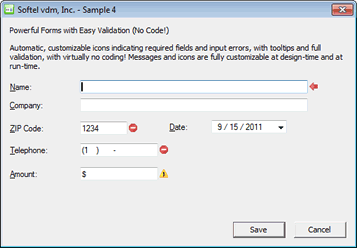
The *ImageEmpty*, *ImageInvalid*, *ImageRequired*, *erroriPosition* and *erroriHandling* fields of the [SFTMASK_CONTROL](https://softelvdm.com/Documentation/SftMask%20DLL%207%200/Topic/struct_sftmask_control) structure are used to control the appearance and behavior of the error image. The images are defined using the [SFT_PICTURE](https://softelvdm.com/Documentation/SftPicture2/Topic/struct_sft_picture) structure and support bitmaps, icons and [GDI+](https://softelvdm.com/Documentation/SftMask%20DLL%207%200/Topic/g_gdiplus) images (PNG, JPEG, etc.).
The *ImageEmpty* field defines the error image shown when the control's contents are empty (depending on the *fAllowEmpty* and *fAllowEmptyWithoutMask* fields). In addition, the *lpszMsgErrorEmpty* field defines the tooltip shown when the mouse cursor hovers over the error image.
The *ImageInvalid* field defines the error image shown when the control's contents are invalid (based on the defined [edit mask](https://softelvdm.com/Documentation/SftMask%20DLL%207%200/Topic/g_editmask) or the [NM_SFTMASK_CUSTOMVALIDATION](https://softelvdm.com/Documentation/SftMask%20DLL%207%200/Topic/i_notifications) notification). In addition, the *lpszMsgErrorInvalid* field defines the tooltip shown when the mouse cursor hovers over the error image.
The *ImageRequired* field defines the error image shown when data entry is required (depending on the *fAllowEmpty* and *fAllowEmptyWithoutMask* fields). In addition, the *lpszMsgErrorRequired* field defines the tooltip shown when the mouse cursor hovers over the error image.
The *erroriPosition* field defines the location of the error image, which can be located to the left or right of the input area.
The *erroriHandling* field defines whether the error image is updated immediately as the control contents change or once the [IsValid](https://softelvdm.com/Documentation/SftMask%20DLL%207%200/Topic/function_isvalid) or [IsValidWithMsg](https://softelvdm.com/Documentation/SftMask%20DLL%207%200/Topic/function_isvalidwithmsg) function is called.
When [per-monitor DPI](https://softelvdm.com/Documentation/SftMask%20DLL%207%200/Topic/g_dpi) image scaling is enabled (see [SetImageScaling](https://softelvdm.com/Documentation/SftMask%20DLL%207%200/Topic/function_setimagescaling)), the error images are scaled to match the monitor's DPI.
See Also [Input Validation](https://softelvdm.com/Documentation/SftMask%20DLL%207%200/Topic/g_inputvalidation) | SFTMASK_ERRORPOSITION Constants | SFTMASK_ERRORHANDLING Constants | SFTMASK_CONTROL
## Popup Calendar
*Source: https://softelvdm.com/Documentation/SftMask%20DLL%207%200/Topic/g_popupcalendar*
Date input fields can optionally display a popup calendar, based on the *iEditStyle* field of the [SFTMASK_CONTROL](https://softelvdm.com/Documentation/SftMask%20DLL%207%200/Topic/struct_sftmask_control) structure ([SFTMASK_EDITCALENDARDROPDOWN](https://softelvdm.com/Documentation/SftMask%20DLL%207%200/Topic/def_sftmask_editstyle)). Pressing the Alt+Down arrow keys, pressing F4 (see *fAllowF4*) or clicking on the drop down button will display the popup calendar. A modern calendar drop down button can be selected using the *fDDButtonCalendar* field. The calendar can also be made visible automatically every time the control receives the input focus by using the *calfDropOnFocus* field.

Once the popup calendar is displayed, the user can select a particular date (see [Keyboard & Mouse Interface](https://softelvdm.com/Documentation/SftMask%20DLL%207%200/Topic/g_keyboard_interface) for details).
The user can press Enter after selecting a date, which closes the popup calendar and enters the date into the [masked edit control](https://softelvdm.com/Documentation/SftMask%20DLL%207%200/Topic/g_maskededitcontrol). Clicking outside of the calendar window has the same effect. A single click on a date can be made to close the calendar using the *calfSingleClickClose* field.
By pressing the Escape key, the user can abandon any [selection](https://softelvdm.com/Documentation/SftMask%20DLL%207%200/Topic/g_selection) and the contents of the masked edit control are unchanged.
The calendar display can be customized using the calendar fields of the SFTMASK_CONTROL structure: the first day of the week (*caliFirstDay*), the valid date range (*calFirstDate*, *calLastDate*), whether today's date is shown and circled (*calfShowToday*, *calfCircleToday*), week numbers (*calfWeekNumbers*) and the calendar colors (*calendarColorBg*, *calendarColorMonthBg*, *calendarColorMonthFg*, *calendarColorOtherFg*, *calendarColorTitleBg*, *calendarColorTitleFg*).
The [NM_SFTMASK_UPDATEMONTH](https://softelvdm.com/Documentation/SftMask%20DLL%207%200/Topic/i_notifications) notification is sent every time a new month is displayed, giving the application the opportunity to highlight certain dates using the [SetBoldDate](https://softelvdm.com/Documentation/SftMask%20DLL%207%200/Topic/function_setbolddate) function.
When entering a date with a 2-digit year, the *calCenturyBreak* field defines the century break used to expand the year; the *calAdjust4DigitYear* field controls whether a 4-digit year is adjusted automatically.
The drop down button can be disabled using the *fLockedDropDown* field. The dropdown button supports hot-tracking (see the *fHotTrack* field).
The [Rollup](https://softelvdm.com/Documentation/SftMask%20DLL%207%200/Topic/function_rollup) function can be used to close the popup calendar, [popup calculator](https://softelvdm.com/Documentation/SftMask%20DLL%207%200/Topic/g_popupcalculator) and [autocomplete](https://softelvdm.com/Documentation/SftMask%20DLL%207%200/Topic/g_autocomplete) window.
The popup calendar follows the control's [dark mode](https://softelvdm.com/Documentation/SftMask%20DLL%207%200/Topic/g_darkmode) and [high contrast](https://softelvdm.com/Documentation/SftMask%20DLL%207%200/Topic/g_highcontrast) rendering.
See Also [Edit Masks](https://softelvdm.com/Documentation/SftMask%20DLL%207%200/Topic/g_editmask) | Popup Calculator | SetBoldDate | SFTMASK_FIRSTDAY Constants | SFTMASK_CONTROL
## Popup Calculator
*Source: https://softelvdm.com/Documentation/SftMask%20DLL%207%200/Topic/g_popupcalculator*
The popup calculator is automatically available for numeric input if the [edit mask](https://softelvdm.com/Documentation/SftMask%20DLL%207%200/Topic/g_editmask) (*lpszMask* field of the [SFTMASK_CONTROL](https://softelvdm.com/Documentation/SftMask%20DLL%207%200/Topic/struct_sftmask_control) structure) has been defined using the C subtoken (see Edit Masks).
While the user enters numeric input in a numeric field, the popup calculator can be accessed by typing the characters +, -, * or / to start an arithmetic operation. The [NM_SFTMASK_INVOKINGCALCULATOR](https://softelvdm.com/Documentation/SftMask%20DLL%207%200/Topic/i_notifications) notification is sent when the popup calculator is about to be displayed. The current value found in the numeric field is combined with the next number entered in the popup calculator's input area using the arithmetic operator typed.

While the popup calculator is displayed, pressing the +, -, * or / characters will calculate the new result and the next number can be entered. The popup calculator works identically to a "real-world" calculator and displays the previous results and the arithmetic operators.
Pressing C will clear the current number entered.
Pressing = will display the new total and the popup calculator remains active.
The user can press the Return key to calculate the new total and close the calculator. The new total is then entered into the [masked edit control](https://softelvdm.com/Documentation/SftMask%20DLL%207%200/Topic/g_maskededitcontrol). If the total exceeds the capacity of the masked edit control numeric field, the popup calculator is not closed.
Pressing the Escape key will close the popup calculator, preserving the original contents of the masked edit control. Using the mouse and clicking outside of the popup calculator has the same effect as pressing the Escape key.
As the user types characters, the NM_SFTMASK_CALCULATORKEYPRESS and NM_SFTMASK_CALCULATORKEY notifications are sent to the parent window.
The number of displayed fractional digits can be defined using the *nFracDigits* field.
The maximum number of lines of intermediate results displayed by the popup calculator can be defined using the *nViewCalcLines* field. The number of lines stored for display purposes is defined using the *nCalcLines* field. If *nViewCalcLines* allows for fewer lines to be displayed than are stored (*nCalcLines*), a vertical scrollbar is shown, which is used to scroll through the list of calculator entries.
The background and foreground colors of the popup calculator can be defined using the *calcColorBg*, *calcColorFg*, *calcColorSelectBg*, *calcColorSelectFg*, *calcColorFrame*, *calcColorTotalBg* and *calcColorTotalFg* fields.
The [Rollup](https://softelvdm.com/Documentation/SftMask%20DLL%207%200/Topic/function_rollup) function can be used to close the [popup calendar](https://softelvdm.com/Documentation/SftMask%20DLL%207%200/Topic/g_popupcalendar), popup calculator and [autocomplete](https://softelvdm.com/Documentation/SftMask%20DLL%207%200/Topic/g_autocomplete) window.
The popup calculator follows the control's [dark mode](https://softelvdm.com/Documentation/SftMask%20DLL%207%200/Topic/g_darkmode) and [high contrast](https://softelvdm.com/Documentation/SftMask%20DLL%207%200/Topic/g_highcontrast) rendering.
See Also Edit Masks | Popup Calendar | Notifications | SFTMASK_CONTROL
## AutoComplete
*Source: https://softelvdm.com/Documentation/SftMask%20DLL%207%200/Topic/g_autocomplete*
SftMask/DLL supports three autocomplete methods, which are intended to assist the user in entering data, by recalling previously entered data or by displaying a list of files/directories.
The *auto_iContents* field of the [SFTMASK_CONTROL](https://softelvdm.com/Documentation/SftMask%20DLL%207%200/Topic/struct_sftmask_control) structure is used to define whether text or files/directories are shown (see SFTMASK_AUTOCOMPLETECONTENTS Constants).
The *auto_iMode* field is used to define the desired autocomplete display method (suggest, append or suggest+append, see SFTMASK_AUTOCOMPLETE Constants).
Generally, autocomplete can be used with input fields where similar data is entered repeatedly or varying, but possibly repeating input data is entered. It should not be used in situations where a fixed set of entries are used. In such cases, a combo box may be a better solution.
The autocomplete feature is supported for both masked input and when using the control as a [Simple Edit Control](https://softelvdm.com/Documentation/SftMask%20DLL%207%200/Topic/g_simpleeditcontrol). Depending on the [edit mask](https://softelvdm.com/Documentation/SftMask%20DLL%207%200/Topic/g_editmask) used, autocomplete may be disabled (masks with numeric, date or time fields do not support autocomplete).
Between 1 and 1000 entries can be saved as defined using the *auto_nMaxEntries* field. The file defined using the *auto_lpszFile* field is used to save the data permanently. As entries are saved, if the maximum number of entries has been reached, the least recently saved or used entry is discarded to make room for the new entry. When displaying files or directory names, the save file is optional and is only used to save the autocomplete window size.
If the file name defined using *auto_lpszFile* starts with a "-" character, the remainder is appended to the user's application data folder (e.g., "-\\MyCompany\\MyApp.dat" resolves to a file in the user's application data folder). The save file can be encrypted using the *auto_fEncrypt* field. Matching is case-insensitive by default (see *auto_fIgnoreCase*).
An application can add entries to the save file programmatically using the [AutoCompleteSeed](https://softelvdm.com/Documentation/SftMask%20DLL%207%200/Topic/function_autocompleteseed) function, for example to offer meaningful suggestions the very first time the user encounters the control. Entries already present are left unchanged, so seeding is cumulative and can be repeated at every application start.
The autocomplete window size can be further controlled using the *auto_fOptimalHeight* and *auto_maxShown* fields.
It is possible to switch between autocomplete modes by setting the *auto_iMode* field, while using the same saved entries in the save file. When changing the edit mask, saved entries may become unusable and the file must be deleted instead.
The [Rollup](https://softelvdm.com/Documentation/SftMask%20DLL%207%200/Topic/function_rollup) function can be used to close the [popup calendar](https://softelvdm.com/Documentation/SftMask%20DLL%207%200/Topic/g_popupcalendar), [popup calculator](https://softelvdm.com/Documentation/SftMask%20DLL%207%200/Topic/g_popupcalculator) and autocomplete window. The [AutoCompleteRefresh](https://softelvdm.com/Documentation/SftMask%20DLL%207%200/Topic/function_autocompleterefresh) function opens or refreshes the autocomplete window programmatically, for example in response to the [SFTMASKN_ELLIPSECLICKED](https://softelvdm.com/Documentation/SftMask%20DLL%207%200/Topic/i_notifications) notification when using the [ellipse button](https://softelvdm.com/Documentation/SftMask%20DLL%207%200/Topic/g_ellipsebuttons) edit style.
The autocomplete window follows the control's [dark mode](https://softelvdm.com/Documentation/SftMask%20DLL%207%200/Topic/g_darkmode) and [high contrast](https://softelvdm.com/Documentation/SftMask%20DLL%207%200/Topic/g_highcontrast) rendering.
### Suggestion
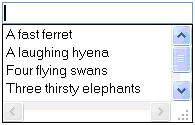
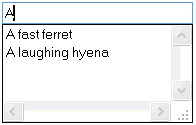
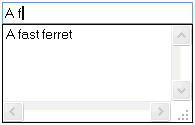
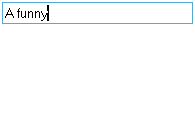
This mode displays a drop down list of matching items as the user enters data. This mode is selected by setting the *auto_iMode* field to [SFTMASK_AUTOCOMPLETE_SUGGEST](https://softelvdm.com/Documentation/SftMask%20DLL%207%200/Topic/def_sftmask_autocompletemode).
With each keystroke the list is refreshed and may increase or decrease. If no entries are present, the drop down list is no longer displayed.
In this example the user types the characters "A f-u-n-n-y" resulting in the following display:
| |
| --- |
|  |
The drop down list is displayed as long as there are matching saved entries or if custom entries are present (see the *auto_fShowOne* field). Custom entries can be added using the [AutoCompleteAddTop](https://softelvdm.com/Documentation/SftMask%20DLL%207%200/Topic/function_autocompleteaddtop) and [AutoCompleteAddBottom](https://softelvdm.com/Documentation/SftMask%20DLL%207%200/Topic/function_autocompleteaddbottom) functions while handling the NM_SFTMASK_MATCHADDCUSTOMITEMS notification.
The drop down list can be resized by the user by dragging the resizing box in the bottom right corner of the list. The drop down dimensions are saved along with the autocomplete entries in the save file.
While the drop down list is created or each time it is refreshed, the application receives the NM_SFTMASK_MATCHING and NM_SFTMASK_MATCHADDCUSTOMITEMS notifications. If the user selects and accepts a saved entry, the NM_SFTMASK_MATCHACCEPT or NM_SFTMASK_MATCHCUSTOM notification is sent.
New input data is saved when the edit control loses the input focus.
### Append
This mode adds a possible completion of the current input as a [selection](https://softelvdm.com/Documentation/SftMask%20DLL%207%200/Topic/g_selection). The user can either accept the input or simply continue entering data without interruption.
This mode is selected by setting the *auto_iMode* field to SFTMASK_AUTOCOMPLETE_APPEND.
With each keystroke the possible completion is reevaluated and refreshed.
In this example the user types the characters "A f-u-n-n-y" resulting in the following display:
| |
| --- |
|  |
While the possible completion is evaluated or refreshed, the application receives the NM_SFTMASK_MATCHING notification.
New input data is saved when the edit control loses the input focus.
### Suggestion + Append
This mode displays a drop down list of matching saved items as the user enters data and adds a possible completion of the current input as a selection.
This mode is selected by setting the *auto_iMode* field to SFTMASK_AUTOCOMPLETE_SUGGESTAPPEND.
With each keystroke the list is refreshed and the possible completion is reevaluated and refreshed. If no entries are present, the drop down list is no longer displayed.
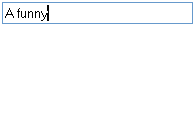
In this example the user types the characters "A f-u-n-n-y" resulting in the following display:
| |
| --- |
| 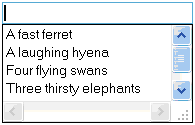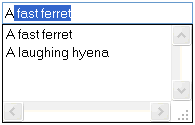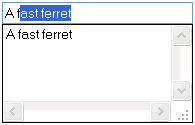 |
The drop down list is displayed as long as there are matching saved entries (see the *auto_fShowOne* field).
The drop down list can be resized by the user by dragging the resizing box in the bottom right corner of the list. The drop down dimensions are saved along with the autocomplete entries in the save file.
While the drop down list is created or each time it is refreshed, the application receives the NM_SFTMASK_MATCHING notification. If the user selects and accepts a saved entry, the NM_SFTMASK_MATCHACCEPT notification is sent.
New input data is saved when the edit control loses the input focus.
See Also Simple Edit Control | Ellipse Buttons | AutoCompleteSeed | SFTMASK_AUTOCOMPLETE Constants | SFTMASK_AUTOCOMPLETECONTENTS Constants | Notifications
## Up/Down Buttons
*Source: https://softelvdm.com/Documentation/SftMask%20DLL%207%200/Topic/g_updownbuttons*
A numeric input field can be defined to accept up/down button clicks. Up/down buttons are only displayed if the *iEditStyle* field of the [SFTMASK_CONTROL](https://softelvdm.com/Documentation/SftMask%20DLL%207%200/Topic/struct_sftmask_control) structure is set to [SFTMASK_EDITUPDOWN](https://softelvdm.com/Documentation/SftMask%20DLL%207%200/Topic/def_sftmask_editstyle) and if the numeric field uses the ^ subtoken (see [Edit Masks](https://softelvdm.com/Documentation/SftMask%20DLL%207%200/Topic/g_editmask)).

Numeric fields with a minimum/maximum range require no further programming to allow the up/down buttons to increment/decrement the current value. For other numeric fields (without minimum/maximum range), the [NM_SFTMASK_UPDOWNPRESS](https://softelvdm.com/Documentation/SftMask%20DLL%207%200/Topic/i_notifications) notification must be handled to increment/decrement the current value under program control. Using the NM_SFTMASK_UPDOWNPRESS notification, an application can implement its own minimum/maximum range and also a delayed or custom increment.
The NM_SFTMASK_UPDOWNHANDLED notification is sent after the control contents have been modified using the up/down button.
Up/down buttons support hot-tracking (see the *fHotTrack* field).
The up/down buttons can be disabled using the *fLockedUpDown* field.
See Also Edit Masks | [Auto-Advance](https://softelvdm.com/Documentation/SftMask%20DLL%207%200/Topic/g_autoadvance) | SFTMASK_EDIT Constants | Notifications
## Ellipse Buttons
*Source: https://softelvdm.com/Documentation/SftMask%20DLL%207%200/Topic/g_ellipsebuttons*
A [masked edit control](https://softelvdm.com/Documentation/SftMask%20DLL%207%200/Topic/g_maskededitcontrol) can be defined to accept ellipse button clicks. An ellipse button is only displayed if the *iEditStyle* field of the [SFTMASK_CONTROL](https://softelvdm.com/Documentation/SftMask%20DLL%207%200/Topic/struct_sftmask_control) structure is set to [SFTMASK_EDITELLIPSE](https://softelvdm.com/Documentation/SftMask%20DLL%207%200/Topic/def_sftmask_editstyle).
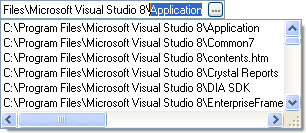
When the user clicks on the ellipse button, the [SFTMASKN_ELLIPSECLICKED](https://softelvdm.com/Documentation/SftMask%20DLL%207%200/Topic/i_notifications) notification is sent to the parent window. This notification has no built-in response. An application must implement a response for the ellipse button to perform an action, such as displaying a file [selection](https://softelvdm.com/Documentation/SftMask%20DLL%207%200/Topic/g_selection) dialog, or opening the [autocomplete](https://softelvdm.com/Documentation/SftMask%20DLL%207%200/Topic/g_autocomplete) suggestion list using the [AutoCompleteRefresh](https://softelvdm.com/Documentation/SftMask%20DLL%207%200/Topic/function_autocompleterefresh) function:
```
case SFTMASKN_ELLIPSECLICKED:
SftMask_AutoComplete_Refresh(hwndCtl); // open the suggestion dropdown
break;
```
The ellipse button can be disabled using the *fLockedEllipse* field.
Ellipse buttons support hot-tracking (see the *fHotTrack* field).
See Also AutoComplete | SFTMASK_EDIT Constants | Notifications
## Auto-Advance
*Source: https://softelvdm.com/Documentation/SftMask%20DLL%207%200/Topic/g_autoadvance*
When defining input masks with multiple numeric fields (or date/time [components](https://softelvdm.com/Documentation/SftMask%20DLL%207%200/Topic/g_components)), the *fAutoAdvance* field of the [SFTMASK_CONTROL](https://softelvdm.com/Documentation/SftMask%20DLL%207%200/Topic/struct_sftmask_control) structure can be used to automatically move the caret location to the next available input position once a numeric field has been completed.
Example Input Mask: \V\a\l\u\e \1\: $^C2.2 \V\a\l\u\e \2\: $^C3.2
This mask defines two input fields, each with the built-in [popup calculator](https://softelvdm.com/Documentation/SftMask%20DLL%207%200/Topic/g_popupcalculator) available.

As the user enters data into the first field, the caret location will advance to the next field as soon as the first field is full or if a character is typed that logically can no longer be entered into the first field.
If *fAutoAdvance* is set to FALSE, typing 12.33 would result in the following, leaving the caret location at the end of the first input field:

If *fAutoAdvance* is set to TRUE, typing 12.33 would fill the first input field completely and the caret location would automatically move to the next input field:

The *fAutoAdvance* field is usually used with date and time fields, so fewer keystrokes are required for data entry.
The *fTabAdvance* and *fTabAdvanceLast* fields can be used to control the use of the Tab key within the [masked edit control](https://softelvdm.com/Documentation/SftMask%20DLL%207%200/Topic/g_maskededitcontrol).
See Also [Auto-Tabbing](https://softelvdm.com/Documentation/SftMask%20DLL%207%200/Topic/g_autotab) | [Tabbing Within The Control](https://softelvdm.com/Documentation/SftMask%20DLL%207%200/Topic/g_tabadvance) | [Edit Masks](https://softelvdm.com/Documentation/SftMask%20DLL%207%200/Topic/g_editmask) | SFTMASK_CONTROL
## Auto-Tabbing
*Source: https://softelvdm.com/Documentation/SftMask%20DLL%207%200/Topic/g_autotab*
Using the *fAutoTab* field of the [SFTMASK_CONTROL](https://softelvdm.com/Documentation/SftMask%20DLL%207%200/Topic/struct_sftmask_control) structure, the input focus can automatically be set to the next control on the dialog once valid input data has been entered and the entire contents are valid.
Example Input Mask: \([M1-9]##\) ###\-####
This mask allows input of a telephone number.
If *fAutoTab* is set to TRUE, typing 9415058600 would result in the following and the input focus advances automatically to the next control on the dialog:

If *fAutoTab* is set to FALSE, the input focus will never move to another control automatically.
The *fAutoTab* field is usually used with fixed masks (not numeric or date/time fields), so fewer keystrokes are required for data entry.
The [NextControl](https://softelvdm.com/Documentation/SftMask%20DLL%207%200/Topic/function_nextcontrol) or [PrevControl](https://softelvdm.com/Documentation/SftMask%20DLL%207%200/Topic/function_prevcontrol) functions can be used by an application to explicitly advance to the next control on the dialog.
The *fTabAdvance* and *fTabAdvanceLast* fields can be used to control the use of the Tab key within the [masked edit control](https://softelvdm.com/Documentation/SftMask%20DLL%207%200/Topic/g_maskededitcontrol).
See Also [Auto-Advance](https://softelvdm.com/Documentation/SftMask%20DLL%207%200/Topic/g_autoadvance) | [Tabbing Within The Control](https://softelvdm.com/Documentation/SftMask%20DLL%207%200/Topic/g_tabadvance) | NextControl | PrevControl
## Tabbing Within The Control
*Source: https://softelvdm.com/Documentation/SftMask%20DLL%207%200/Topic/g_tabadvance*
Depending on the input mask, it may be desirable to allow the user to tab between different input fields **within** one [masked edit control](https://softelvdm.com/Documentation/SftMask%20DLL%207%200/Topic/g_maskededitcontrol). For example, when entering dates, the user may wish to tab between Month, Day and Year fields. The *fTabAdvance* field of the [SFTMASK_CONTROL](https://softelvdm.com/Documentation/SftMask%20DLL%207%200/Topic/struct_sftmask_control) structure can be used to enable this feature.
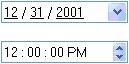
If *fTabAdvance* is set to TRUE, the Tab key will advance or back up (Shift+Tab) the caret location to the next input field (see [Keyboard & Mouse Interface](https://softelvdm.com/Documentation/SftMask%20DLL%207%200/Topic/g_keyboard_interface)). If the caret location is already at the end (or beginning) of the input data, the input focus will move to the next (or previous) control on the dialog instead. The *fTabAdvanceLast* field controls whether the Tab key moves to the next control when the caret is at the end of the last input field.
See Also [Auto-Advance](https://softelvdm.com/Documentation/SftMask%20DLL%207%200/Topic/g_autoadvance) | [Auto-Tabbing](https://softelvdm.com/Documentation/SftMask%20DLL%207%200/Topic/g_autotab) | Keyboard & Mouse Interface | SFTMASK_CONTROL
## Insert/Overtype Mode
*Source: https://softelvdm.com/Documentation/SftMask%20DLL%207%200/Topic/g_insertovertype*
SftMask/DLL supports both insert and overtype mode.
| | |
| --- | --- |
|  |  |
| *Insert Mode* | *Overtype Mode* |
Insert mode is the standard mode for edit controls. A vertical bar shows the insertion point.
Overtype mode is visually indicated by the [selection](https://softelvdm.com/Documentation/SftMask%20DLL%207%200/Topic/g_selection) which is automatically extended to include one character position (if possible). If data entry is not possible, the selection is not extended and only the insertion point is shown.
The user switches between insert and overtype mode using the Insert key. The application can switch between modes using the *fInsert* field of the [SFTMASK_CONTROL](https://softelvdm.com/Documentation/SftMask%20DLL%207%200/Topic/struct_sftmask_control) structure.
The *iInputMode* field is used to define the control's insert/overtype mode behavior (see SFTMASK_INPUT Constants). The mode can be fixed (insert only), per control, per entry or application-global.
To allow an application to display the current insert/overtype mode, e.g., in a status bar, the [NM_SFTMASK_INPUTMODEUPDATE](https://softelvdm.com/Documentation/SftMask%20DLL%207%200/Topic/i_notifications) notification is used to notify the application of any mode change that may occur, through user interaction, input focus change or application driven changes. By responding to the NM_SFTMASK_INPUTMODEUPDATE notification, an application is guaranteed to be notified of the current input mode.
See Also SFTMASK_INPUT Constants | [Keyboard & Mouse Interface](https://softelvdm.com/Documentation/SftMask%20DLL%207%200/Topic/g_keyboard_interface) | Notifications
## Undo
*Source: https://softelvdm.com/Documentation/SftMask%20DLL%207%200/Topic/g_undo*
The [masked edit control](https://softelvdm.com/Documentation/SftMask%20DLL%207%200/Topic/g_maskededitcontrol) can undo previous user actions (such as entering text). Up to 16 actions can be reversed.
By right-clicking on the edit control, a popup menu is displayed which allows the user to select "Undo".
An application can use the [CanUndo](https://softelvdm.com/Documentation/SftMask%20DLL%207%200/Topic/function_canundo) function to test if any actions can be reversed. The [EmptyUndo](https://softelvdm.com/Documentation/SftMask%20DLL%207%200/Topic/function_emptyundo) function discards all stored undo actions, for example after programmatically replacing the control's contents.
See Also CanUndo | EmptyUndo | [Keyboard & Mouse Interface](https://softelvdm.com/Documentation/SftMask%20DLL%207%200/Topic/g_keyboard_interface)
## Selection
*Source: https://softelvdm.com/Documentation/SftMask%20DLL%207%200/Topic/g_selection*
Various fields and functions are available to manipulate the selection (highlighted) text.
| | |
| --- | --- |
| *iClipMode* | Defines how text is cut and pasted and the behavior of the [GetText](https://softelvdm.com/Documentation/SftMask%20DLL%207%200/Topic/function_gettext), [SetText](https://softelvdm.com/Documentation/SftMask%20DLL%207%200/Topic/function_settext), [GetSelText](https://softelvdm.com/Documentation/SftMask%20DLL%207%200/Topic/function_getseltext), [SetSelText](https://softelvdm.com/Documentation/SftMask%20DLL%207%200/Topic/function_setseltext) and Contents_GetValue functions - with or without literal characters (see SFTMASK_CLIP Constants). |
| *iEntrySelect* | Defines whether the contents are automatically selected when the control receives the input focus (see SFTMASK_ENTRY Constants). |
| *fEntrySelectMouse* | Defines whether mouse clicks honor the *iEntrySelect* field setting. |
| *selStart*, *selEnd* | The start and end of the selected characters (fields of the [SFTMASK_CONTROL](https://softelvdm.com/Documentation/SftMask%20DLL%207%200/Topic/struct_sftmask_control) structure). *selStart* is also the current insertion point or caret location. Any character typed by the user is inserted at this position. If *selStart* and *selEnd* are equal, there is no selection. |
| GetSelText, SetSelText | Retrieve or replace the contents of the selected (highlighted) area. |
See Also GetSelText | SetSelText | SFTMASK_CLIP Constants | SFTMASK_ENTRY Constants | SFTMASK_CONTROL
## Hit-Testing
*Source: https://softelvdm.com/Documentation/SftMask%20DLL%207%200/Topic/g_hittesting*
A number of functions are available to determine the exact position of [components](https://softelvdm.com/Documentation/SftMask%20DLL%207%200/Topic/g_components) of the [masked edit control](https://softelvdm.com/Documentation/SftMask%20DLL%207%200/Topic/g_maskededitcontrol):
| | |
| --- | --- |
| [GetCharIndex](https://softelvdm.com/Documentation/SftMask%20DLL%207%200/Topic/function_getcharindex) | Returns the index of the character at a given location. |
| [GetCharPos](https://softelvdm.com/Documentation/SftMask%20DLL%207%200/Topic/function_getcharpos) | Returns the position of a range of characters. |
| [GetInsertPosition](https://softelvdm.com/Documentation/SftMask%20DLL%207%200/Topic/function_getinsertposition) | Calculates the caret location for insertion. |
| [GetPosition](https://softelvdm.com/Documentation/SftMask%20DLL%207%200/Topic/function_getposition) | Returns the position and dimensions of an area. |
| [HitTest](https://softelvdm.com/Documentation/SftMask%20DLL%207%200/Topic/function_hittest) | Determines the area at a given location (see SFTMASK_AREA Constants). |
See Also [C/C++ API](https://softelvdm.com/Documentation/SftMask%20DLL%207%200/Topic/i_api) | SFTMASK_AREA Constants
## Drag & Drop
*Source: https://softelvdm.com/Documentation/SftMask%20DLL%207%200/Topic/g_dragdrop*
The [masked edit control](https://softelvdm.com/Documentation/SftMask%20DLL%207%200/Topic/g_maskededitcontrol) can participate in application-implemented drag & drop of its selected text.
The *iDragMode* field of the [SFTMASK_CONTROL](https://softelvdm.com/Documentation/SftMask%20DLL%207%200/Topic/struct_sftmask_control) structure defines the drag behavior:
| | |
| --- | --- |
| [SFTMASK_DRAG_NONE](https://softelvdm.com/Documentation/SftMask%20DLL%207%200/Topic/def_sftmask_dragmode) | Dragging is not supported. This is the default. |
| SFTMASK_DRAG_MANUAL | When the user presses the left mouse button on the selected (highlighted) text and starts to drag, the [NM_SFTMASK_DRAGSTARTING](https://softelvdm.com/Documentation/SftMask%20DLL%207%200/Topic/i_notifications) notification is sent to the parent window. The application implements the actual drag & drop operation (e.g., using OLE drag & drop) and sets the *fDragUsed* member of the notification structure to indicate that the drag was used. |
The [ShowDropPosition](https://softelvdm.com/Documentation/SftMask%20DLL%207%200/Topic/function_showdropposition) function can be used by a drop target to visualize the insert location while dragging over the control, and [GetInsertPosition](https://softelvdm.com/Documentation/SftMask%20DLL%207%200/Topic/function_getinsertposition) calculates the caret location for a drop at a given point.
See Also Notifications | ShowDropPosition | GetInsertPosition | SFTMASK_CONTROL
## Display Attributes
*Source: https://softelvdm.com/Documentation/SftMask%20DLL%207%200/Topic/g_displayattributes*
Various fields of the [SFTMASK_CONTROL](https://softelvdm.com/Documentation/SftMask%20DLL%207%200/Topic/struct_sftmask_control) structure are available to define the visual appearance of the [masked edit control](https://softelvdm.com/Documentation/SftMask%20DLL%207%200/Topic/g_maskededitcontrol):
| | |
| --- | --- |
| *iAlignment* | The horizontal alignment of the contents (ES_LEFT, ES_CENTER, ES_RIGHT). While the control has the input focus, left and right aligned text display is possible. While the control does not have the input focus, left, centered or right aligned text is possible. The *lpszFormattedText* field can be used to override the default contents while the control does not have the input focus. |
| *fAutoSize* | Controls the height of the control. By setting *fAutoSize* to TRUE, the control's height is automatically adjusted so text is never clipped vertically. The height of the control is increased or decreased as necessary based on the size of the font used (defined using the WM_SETFONT message and the *captionFont* field). |
| *iBorderStyle* | Defines the border style of the control (see SFTMASK_BORDER Constants). |
| *lpszCaption* and *[caption](https://softelvdm.com/Documentation/SftMask%20DLL%207%200/Topic/g_builtincaption)** fields | Describe the attributes of the control's caption area (see Built-In Caption). |
| *fDDButtonVScrollWidth* | Defines whether the [drop down button](https://softelvdm.com/Documentation/SftMask%20DLL%207%200/Topic/g_popupcalendar) uses the width of a vertical scrollbar. |
| *iEditStyle* | Defines whether [up/down buttons](https://softelvdm.com/Documentation/SftMask%20DLL%207%200/Topic/g_updownbuttons), a calendar drop down button or an [ellipse button](https://softelvdm.com/Documentation/SftMask%20DLL%207%200/Topic/g_ellipsebuttons) is displayed (see SFTMASK_EDIT Constants). |
| Font | The font used to display the contents of the control is defined using the WM_SETFONT message. Modifiable fields can optionally be underlined using the *fPromptUnderline* field. The height of the control may automatically be adjusted when the font changes, based on the *fAutoSize* field. |
| *lpszFormattedText* | This optional field can be used to display text when the masked edit control does not have the input focus, overriding the (default) formatted contents of the control. |
| *fHideSelection* | Defines the display of the currently selected text when the control does not have the input focus. |
| *fHotTrack* | Defines whether up/down, drop down and ellipse buttons are hot-tracked. |
| *lpszLabel*, *iLabelPosition* | Define a label displayed inside the edit area (see [Label](https://softelvdm.com/Documentation/SftMask%20DLL%207%200/Topic/g_label)). |
| *chPromptChar* | Modifiable fields can display the prompt character in places where data has not yet been entered. The default is a space character. The *fPromptUnderline* field can be used to underline input fields. The *fPromptUnderline* field should be used instead of defining *chPromptChar* as an underscore ("_") character. |
| *fPromptUnderline*, *fPromptUnderlineNoFocus* | These fields can be used to underline areas where data has not been entered, with and without the input focus. |
| *chPswdChar* | If data entered should not be displayed (e.g. in password fields), the *chPswdChar* field can be used to define the character that should be displayed instead of actual data. The *chPswdChar* field only takes effect if the " Keep in mind that numerous control definitions, particularly relating to colors, have no effect when themes are active.
See Also [Display Attributes](https://softelvdm.com/Documentation/SftMask%20DLL%207%200/Topic/g_displayattributes) | Dark Mode | High Contrast | SFTMASK_THEME Constants
## Dark Mode
*Source: https://softelvdm.com/Documentation/SftMask%20DLL%207%200/Topic/g_darkmode*
SftMask/DLL 7.0 supports dark mode. The default for new controls is [SFTMASK_DARKMODE_OFF](https://softelvdm.com/Documentation/SftMask%20DLL%207%200/Topic/def_sftmask_darkmode) (always light) to preserve visual back-compatibility for applications written before dark mode existed. Applications that want their masked edit controls to follow the Windows "Choose your mode" setting should call [SetDarkMode](https://softelvdm.com/Documentation/SftMask%20DLL%207%200/Topic/function_setdarkmode) with SFTMASK_DARKMODE_AUTO once at control creation, or maintain their own Light / Dark toggle and switch each control to ON / OFF as the toggle changes.
What changes in dark mode: the edit area, [caption](https://softelvdm.com/Documentation/SftMask%20DLL%207%200/Topic/g_builtincaption), literals, prompt underlines, buttons (up-down, drop down, ellipse), [error image](https://softelvdm.com/Documentation/SftMask%20DLL%207%200/Topic/g_errorimage) area and all popup windows - the [popup calendar](https://softelvdm.com/Documentation/SftMask%20DLL%207%200/Topic/g_popupcalendar), the [popup calculator](https://softelvdm.com/Documentation/SftMask%20DLL%207%200/Topic/g_popupcalculator) and the [autocomplete](https://softelvdm.com/Documentation/SftMask%20DLL%207%200/Topic/g_autocomplete) window - switch to dark-palette colors. Theme-driven chrome is suppressed while dark mode is active so that the control matches the dark palette instead of the system's light-themed edit field style.
The [masked edit control](https://softelvdm.com/Documentation/SftMask%20DLL%207%200/Topic/g_maskededitcontrol)'s dark mode setting has three values (see SetDarkMode):
| | |
| --- | --- |
| **OFF** (default) | Always use the light palette, regardless of the Windows setting. Preserves visual back-compatibility for applications written before dark mode existed. |
| **ON** | Always use the dark palette, regardless of the Windows setting. Useful when the hosting application has its own Light / Dark toggle and wants the control to follow it. |
| **AUTO** | Follow the Windows "Choose your mode" setting. The control re-renders when the system setting flips and sends [SFTMASKN_DARKMODE_CHANGED](https://softelvdm.com/Documentation/SftMask%20DLL%207%200/Topic/i_notifications) to the parent window. |
SFTMASKN_DARKMODE_CHANGED is sent to the parent window each time the active dark mode state flips (AUTO mode only) so the application can repaint its own chrome around the masked edit control. [IsDarkModeActive](https://softelvdm.com/Documentation/SftMask%20DLL%207%200/Topic/function_isdarkmodeactive) reports the current state at any time; the read-only *fDarkModeActive* field of the [SFTMASK_CONTROL](https://softelvdm.com/Documentation/SftMask%20DLL%207%200/Topic/struct_sftmask_control) structure reports the same state.
Caller-supplied color overrides (explicit RGB values for background, foreground, [selection](https://softelvdm.com/Documentation/SftMask%20DLL%207%200/Topic/g_selection), caption, calendar and calculator colors) are still honored in dark mode - the control does *not* override application-chosen colors. If you need specific controls to stand out in dark mode, pick accent colors that read well on both a light and a dark background (mid-tone saturated values in the RGB 30-210 range tend to work in both).
[Windows themes](https://softelvdm.com/Documentation/SftMask%20DLL%207%200/Topic/g_using_themes) are suppressed while dark mode is active. The control's edit field frame and buttons fall back to the control's built-in dark-aware GDI rendering path so they match the dark palette instead of the system's light-themed style.
Dark mode and [Windows High Contrast](https://softelvdm.com/Documentation/SftMask%20DLL%207%200/Topic/g_highcontrast) are independent. If the user has both enabled, high contrast takes precedence (see High Contrast).
Dark mode requires Windows 10 or later. On earlier platforms the setting is stored but has no visual effect.
See Also SetDarkMode | [GetDarkMode](https://softelvdm.com/Documentation/SftMask%20DLL%207%200/Topic/function_getdarkmode) | IsDarkModeActive | High Contrast | Using Themes
## High Contrast
*Source: https://softelvdm.com/Documentation/SftMask%20DLL%207%200/Topic/g_highcontrast*
Windows High Contrast is an [accessibility](https://softelvdm.com/Documentation/SftMask%20DLL%207%200/Topic/g_accessibility) setting, not a visual preference. Users who enable it have committed to a specific high-contrast color scheme for everything on screen, and Microsoft's accessibility guidelines require applications to let the user's scheme win over any application-chosen colors. SftMask/DLL 7.0 follows this rule automatically.
When Windows High Contrast is active, the [masked edit control](https://softelvdm.com/Documentation/SftMask%20DLL%207%200/Topic/g_maskededitcontrol):
- resolves all system color values (COLOR_* based colors, which are the control's defaults) to the user's high contrast palette - this covers the edit area, [caption](https://softelvdm.com/Documentation/SftMask%20DLL%207%200/Topic/g_builtincaption), [popup calendar](https://softelvdm.com/Documentation/SftMask%20DLL%207%200/Topic/g_popupcalendar), [popup calculator](https://softelvdm.com/Documentation/SftMask%20DLL%207%200/Topic/g_popupcalculator) and [autocomplete](https://softelvdm.com/Documentation/SftMask%20DLL%207%200/Topic/g_autocomplete) window,
- suppresses [dark mode](https://softelvdm.com/Documentation/SftMask%20DLL%207%200/Topic/g_darkmode) rendering - high contrast takes precedence over dark mode,
- suppresses [Windows themes](https://softelvdm.com/Documentation/SftMask%20DLL%207%200/Topic/g_using_themes). The control falls back to a non-themed GDI path that honors system colors directly.
Custom RGB color values set by the application remain in effect - the control does not override application-chosen explicit colors. Applications should avoid hard-coding colors on controls that must respect the user's contrast theme, or switch to [SFTMASK_NOCOLOR](https://softelvdm.com/Documentation/SftMask%20DLL%207%200/Topic/def_sftmask_nocolor) / system color values while high contrast is active.
The masked edit control's high contrast setting has three values (see [SetHighContrastMode](https://softelvdm.com/Documentation/SftMask%20DLL%207%200/Topic/function_sethighcontrastmode)):
| | |
| --- | --- |
| **AUTO** (default) | Follow the Windows High Contrast setting. The control re-renders when the setting flips. |
| **ON** | Always use the system palette, regardless of the Windows High Contrast setting. Useful for testing or for applications that want consistent high-contrast rendering for a specific control. |
| **OFF** | Ignore the Windows High Contrast setting and render normally. Not recommended in shipping applications - it means users with accessibility needs will see rendering that does not comply with their contrast theme. |
[SFTMASKN_HIGHCONTRAST_CHANGED](https://softelvdm.com/Documentation/SftMask%20DLL%207%200/Topic/i_notifications) is sent to the parent window each time the active state flips (AUTO mode only) so the application can repaint its own chrome to match. [IsHighContrastActive](https://softelvdm.com/Documentation/SftMask%20DLL%207%200/Topic/function_ishighcontrastactive) reports the current state at any time; the read-only *fHighContrastActive* field of the [SFTMASK_CONTROL](https://softelvdm.com/Documentation/SftMask%20DLL%207%200/Topic/struct_sftmask_control) structure reports the same state.
Dark mode and Windows High Contrast are independent. If the user has both enabled, high contrast takes precedence - the contrast theme's palette wins over the dark palette, because honoring the user's contrast theme is the stronger accessibility requirement.
See Also Dark Mode | Accessibility (Screen Readers) | SetHighContrastMode | IsHighContrastActive
## Accessibility (Screen Readers)
*Source: https://softelvdm.com/Documentation/SftMask%20DLL%207%200/Topic/g_accessibility*
SftMask/DLL 7.0 ships with built-in Windows UI Automation (UIA) support. Users who rely on Narrator, NVDA, JAWS or any other UIA-compatible assistive technology can read and operate SftMask controls without the hosting application doing any work. No opt-in, no code change, no separate build.
What the screen reader sees:
| | |
| --- | --- |
| Control type | **Edit**. |
| Name | The control's [caption](https://softelvdm.com/Documentation/SftMask%20DLL%207%200/Topic/g_builtincaption) text (with the ampersand accelerator prefix stripped for speech), if a caption is defined. |
| Value | The control's current contents, exposed through the Value pattern. The pattern supports reading and setting the text and reports the read-only state (the *fLocked* field). For password input (see *chPswdChar* and the * / ** element to the application manifest. Both elements are usually included for back-compatibility with older Windows 10 builds:
```
PerMonitorV2
True/PM
```
In a Visual Studio C++ project, set *Project Properties -> Manifest Tool -> Input and Output -> Additional Manifest Files* to the .manifest file above, or edit the auto-generated manifest directly.
#### Runtime API
Alternatively, call SetProcessDpiAwarenessContext at process startup, before any window is created:
```
SetProcessDpiAwarenessContext(DPI_AWARENESS_CONTEXT_PER_MONITOR_AWARE_V2);
```
Caveat: This call must run before the first window (including hidden startup dialogs or splash screens) is created. If a window has already been created, Windows rejects the call and the process remains in whichever mode the manifest specified.
#### Verifying the declaration worked
Quick check at runtime: [GetDPI](https://softelvdm.com/Documentation/SftMask%20DLL%207%200/Topic/function_getdpi) on the masked edit control returns the current monitor's DPI - 96 at 100%, 120 at 125%, 144 at 150%, 192 at 200%. If the returned value never changes as you drag the window between monitors with different scale factors, the host is not in PMv2 mode.
### What the caller controls
Two independent flags let the caller choose whether caller-supplied pixel metrics and caller-supplied images scale with DPI. Both default to **ASIS**, preserving the behavior of applications written for earlier SftMask/DLL versions. Applications that want automatic scaling opt in by switching either flag to STRETCH.
| Flag | Covers | ASIS (default) | STRETCH |
| --- | --- | --- | --- |
| [SetImageScaling](https://softelvdm.com/Documentation/SftMask%20DLL%207%200/Topic/function_setimagescaling) | The error images the control draws: *ImageInvalid*, *ImageEmpty* and *ImageRequired*. | Images are drawn at their native pixel size. Images supplied at 96 DPI look physically smaller on a high-DPI monitor. | Images are scaled by *currentDPI / 96* at draw time. |
| [SetPixelScaling](https://softelvdm.com/Documentation/SftMask%20DLL%207%200/Topic/function_setpixelscaling) | Caller-supplied pixel dimensions on the [SFTMASK_CONTROL](https://softelvdm.com/Documentation/SftMask%20DLL%207%200/Topic/struct_sftmask_control) structure (*captionnWidth*). | Values are used verbatim in physical screen pixels. | Values are interpreted as 96-DPI reference pixels. A value of 20 is 20 pixels at 100%, 30 pixels at 150%, 40 pixels at 200%. Storage and getters always return caller-reference units so serialized configurations stay portable. |
### Caller responsibilities on DPI change
When the control's monitor DPI changes, SftMask sends **SFTMASKN_DPI_CHANGED** to the parent window. The application should:
- re-send WM_SETFONT with a font sized for the new DPI (SftMask does not own the application's font); with *fAutoSize* set, the control resizes itself to the new font automatically,
- if SetImageScaling is STRETCH, no further action needed - the control scales the error images automatically,
- if SetImageScaling is ASIS (default) and the caller wants crisp images, re-register the [SFT_PICTURE](https://softelvdm.com/Documentation/SftPicture2/Topic/struct_sft_picture) error images at the new physical size,
- if SetPixelScaling is STRETCH, no further action needed,
- if SetPixelScaling is ASIS (default), re-apply caller-supplied pixel dimensions scaled for the new DPI if desired.
Platform note: Per-Monitor v2 DPI awareness requires Windows 10 version 1703 or later. On older platforms the host process runs in System-aware or Unaware mode and DPI is effectively fixed for the process lifetime - SftMask still renders correctly but does not send SFTMASKN_DPI_CHANGED.
See Also SetImageScaling | SetPixelScaling | GetDPI | Notifications
## Demo Application
*Source: https://softelvdm.com/Documentation/SftMask%20DLL%207%200/Topic/g_demo_application*
During the installation of SftMask/DLL, an icon for the demo application "Demo" is installed in the program group *SftMask DLL 7.0*.
This demo application shows some of the features available in SftMask/DLL, including live masked edit controls for currency input with a dropdown [calculator](https://softelvdm.com/Documentation/SftMask%20DLL%207%200/Topic/g_popupcalculator), date input with a dropdown [calendar](https://softelvdm.com/Documentation/SftMask%20DLL%207%200/Topic/g_popupcalendar), IP address input with up-down buttons and [autocomplete](https://softelvdm.com/Documentation/SftMask%20DLL%207%200/Topic/g_autocomplete). It is also used to launch the [SftMask/DLL Wizard](https://softelvdm.com/Documentation/SftMask%20DLL%207%200/Topic/g_wizard), run the sample applications included with the product and view the online help.
> All sample programs and complete sample source code can be found in the directory "\Program Files (x86)\Softelvdm\SftMask DLL 7.0\Samples". Each sample is installed in its own subdirectory.
## Samples
*Source: https://softelvdm.com/Documentation/SftMask%20DLL%207%200/Topic/g_samples*
SftMask/DLL includes sample code for C and C++/MFC.
The samples listed in the following table can be found in the folder "\Program Files (x86)\Softelvdm\SftMask DLL 7.0\Samples". These samples are also referenced throughout the documentation.
### C
| C Sample | Description |
| --- | --- |
| [Calculator Sample](https://softelvdm.com/Documentation/SftMask%20DLL%207%200/Topic/sample_c_calculator) | Currency amount input with the dropdown [calculator](https://softelvdm.com/Documentation/SftMask%20DLL%207%200/Topic/g_popupcalculator) and the locale currency symbol as a label. |
| [DateTime Sample](https://softelvdm.com/Documentation/SftMask%20DLL%207%200/Topic/sample_c_datetime) | Date input with a dropdown [calendar](https://softelvdm.com/Documentation/SftMask%20DLL%207%200/Topic/g_popupcalendar) (defaulting to today's date) and date/time input with up-down buttons. |
| [DataEntry Sample](https://softelvdm.com/Documentation/SftMask%20DLL%207%200/Topic/sample_c_dataentry) | IP address input with up-down buttons, password input, a US phone number mask and a path field with file/folder [autocomplete](https://softelvdm.com/Documentation/SftMask%20DLL%207%200/Topic/g_autocomplete) including [ellipse button](https://softelvdm.com/Documentation/SftMask%20DLL%207%200/Topic/g_ellipsebuttons) handling. |
### C++/MFC
| C++/MFC Sample | Description |
| --- | --- |
| [Calculator Sample](https://softelvdm.com/Documentation/SftMask%20DLL%207%200/Topic/sample_mfc_calculator) | Currency amount input with the dropdown calculator, hosted through [CSftMask](https://softelvdm.com/Documentation/SftMask%20DLL%207%200/Topic/function_csftmask) and DDX_Control. |
| [DateTime Sample](https://softelvdm.com/Documentation/SftMask%20DLL%207%200/Topic/sample_mfc_datetime) | Date input with a dropdown calendar (defaulting to today's date) and date/time input with up-down buttons. |
| [DataEntry Sample](https://softelvdm.com/Documentation/SftMask%20DLL%207%200/Topic/sample_mfc_dataentry) | IP address input with up-down buttons, password input, a US phone number mask and a path field with file/folder autocomplete, including ellipse button handling through ON_CONTROL. |
## Calculator Sample (C)
*Source: https://softelvdm.com/Documentation/SftMask%20DLL%207%200/Topic/sample_c_calculator*
This sample illustrates currency amount input with the dropdown [calculator](https://softelvdm.com/Documentation/SftMask%20DLL%207%200/Topic/g_popupcalculator) in a dialog. It covers registering the masked edit window class, placing a control from a dialog resource, configuring the currency mask ($C-,8.2) with the locale currency symbol as a label, and [dark mode](https://softelvdm.com/Documentation/SftMask%20DLL%207%200/Topic/g_darkmode) support.
The source code is located at C:\Program Files (x86)\Softelvdm\SftMask DLL 7.0\Samples\C\Calculator\Calculator.c or C:\Program Files\Softelvdm\SftMask DLL 7.0\Samples\C\Calculator\Calculator.c (on 32-bit Windows versions).
[Full sample source — Calculator Sample (C) (115 lines) →](https://softelvdm.com/Vault/Softelvdm.com/llms/SftMask-DLL-7.0-samples.txt)
## DateTime Sample (C)
*Source: https://softelvdm.com/Documentation/SftMask%20DLL%207%200/Topic/sample_c_datetime*
This sample illustrates date input with a dropdown [calendar](https://softelvdm.com/Documentation/SftMask%20DLL%207%200/Topic/g_popupcalendar) (defaulting to today's date using the =Today [default text](https://softelvdm.com/Documentation/SftMask%20DLL%207%200/Topic/g_defaulttext)) and date/time input with up-down buttons and tabbing between fields.
The source code is located at C:\Program Files (x86)\Softelvdm\SftMask DLL 7.0\Samples\C\DateTime\DateTime.c or C:\Program Files\Softelvdm\SftMask DLL 7.0\Samples\C\DateTime\DateTime.c (on 32-bit Windows versions).
[Full sample source — DateTime Sample (C) (139 lines) →](https://softelvdm.com/Vault/Softelvdm.com/llms/SftMask-DLL-7.0-samples.txt)
## DataEntry Sample (C)
*Source: https://softelvdm.com/Documentation/SftMask%20DLL%207%200/Topic/sample_c_dataentry*
This sample illustrates several common data entry controls: IP address input with up-down buttons and auto advance, password input with a hidden display character, a US phone number mask, and a path field with file/folder [autocomplete](https://softelvdm.com/Documentation/SftMask%20DLL%207%200/Topic/g_autocomplete) where the [ellipse button](https://softelvdm.com/Documentation/SftMask%20DLL%207%200/Topic/g_ellipsebuttons) opens the suggestion dropdown ([SFTMASKN_ELLIPSECLICKED](https://softelvdm.com/Documentation/SftMask%20DLL%207%200/Topic/i_notifications)).
The source code is located at C:\Program Files (x86)\Softelvdm\SftMask DLL 7.0\Samples\C\DataEntry\DataEntry.c or C:\Program Files\Softelvdm\SftMask DLL 7.0\Samples\C\DataEntry\DataEntry.c (on 32-bit Windows versions).
[Full sample source — DataEntry Sample (C) (192 lines) →](https://softelvdm.com/Vault/Softelvdm.com/llms/SftMask-DLL-7.0-samples.txt)
## Calculator Sample (C++/MFC)
*Source: https://softelvdm.com/Documentation/SftMask%20DLL%207%200/Topic/sample_mfc_calculator*
This sample illustrates currency amount input with the dropdown [calculator](https://softelvdm.com/Documentation/SftMask%20DLL%207%200/Topic/g_popupcalculator), hosted in an MFC dialog through [CSftMask](https://softelvdm.com/Documentation/SftMask%20DLL%207%200/Topic/function_csftmask) and DDX_Control. It covers registering with SftMask/DLL in InitInstance, configuring the currency mask ($C-,8.2) with the locale currency symbol as a label, and [dark mode](https://softelvdm.com/Documentation/SftMask%20DLL%207%200/Topic/g_darkmode) support.
The source code is located at C:\Program Files (x86)\Softelvdm\SftMask DLL 7.0\Samples\MFC\Calculator or C:\Program Files\Softelvdm\SftMask DLL 7.0\Samples\MFC\Calculator (on 32-bit Windows versions).
[Full sample source — Calculator Sample (C++/MFC) (70 lines) →](https://softelvdm.com/Vault/Softelvdm.com/llms/SftMask-DLL-7.0-samples.txt)
## DateTime Sample (C++/MFC)
*Source: https://softelvdm.com/Documentation/SftMask%20DLL%207%200/Topic/sample_mfc_datetime*
This sample illustrates date input with a dropdown [calendar](https://softelvdm.com/Documentation/SftMask%20DLL%207%200/Topic/g_popupcalendar) (defaulting to today's date using the =Today [default text](https://softelvdm.com/Documentation/SftMask%20DLL%207%200/Topic/g_defaulttext)) and date/time input with up-down buttons, hosted in an MFC dialog through [CSftMask](https://softelvdm.com/Documentation/SftMask%20DLL%207%200/Topic/function_csftmask) and DDX_Control.
The source code is located at C:\Program Files (x86)\Softelvdm\SftMask DLL 7.0\Samples\MFC\DateTime or C:\Program Files\Softelvdm\SftMask DLL 7.0\Samples\MFC\DateTime (on 32-bit Windows versions).
[Full sample source — DateTime Sample (C++/MFC) (94 lines) →](https://softelvdm.com/Vault/Softelvdm.com/llms/SftMask-DLL-7.0-samples.txt)
## DataEntry Sample (C++/MFC)
*Source: https://softelvdm.com/Documentation/SftMask%20DLL%207%200/Topic/sample_mfc_dataentry*
This sample illustrates several common data entry controls hosted in an MFC dialog through [CSftMask](https://softelvdm.com/Documentation/SftMask%20DLL%207%200/Topic/function_csftmask) and DDX_Control: IP address input with up-down buttons and auto advance, password input with a hidden display character, a US phone number mask, and a path field with file/folder [autocomplete](https://softelvdm.com/Documentation/SftMask%20DLL%207%200/Topic/g_autocomplete) where the [ellipse button](https://softelvdm.com/Documentation/SftMask%20DLL%207%200/Topic/g_ellipsebuttons) opens the suggestion dropdown ([SFTMASKN_ELLIPSECLICKED](https://softelvdm.com/Documentation/SftMask%20DLL%207%200/Topic/i_notifications) handled with ON_CONTROL).
The source code is located at C:\Program Files (x86)\Softelvdm\SftMask DLL 7.0\Samples\MFC\DataEntry or C:\Program Files\Softelvdm\SftMask DLL 7.0\Samples\MFC\DataEntry (on 32-bit Windows versions).
[Full sample source — DataEntry Sample (C++/MFC) (145 lines) →](https://softelvdm.com/Vault/Softelvdm.com/llms/SftMask-DLL-7.0-samples.txt)
## SftMask/DLL Wizard
*Source: https://softelvdm.com/Documentation/SftMask%20DLL%207%200/Topic/g_wizard*
During the installation of SftMask/DLL, an icon for the application "Wizard" is installed in the program group *SftMask DLL 7.0*.
This application can be used to generate most of the source code needed to create and initialize a [masked edit control](https://softelvdm.com/Documentation/SftMask%20DLL%207%200/Topic/g_maskededitcontrol) in a dialog or a window. It honors most SftMask/DLL attributes and should be used at design-time to build the necessary masked edit control initialization code.
The SftMask/DLL Wizard application is used to design a masked edit control. All control attributes - the [edit mask](https://softelvdm.com/Documentation/SftMask%20DLL%207%200/Topic/g_editmask), edit styles, [caption](https://softelvdm.com/Documentation/SftMask%20DLL%207%200/Topic/g_builtincaption), label, validation, [calendar](https://softelvdm.com/Documentation/SftMask%20DLL%207%200/Topic/g_popupcalendar), [calculator](https://softelvdm.com/Documentation/SftMask%20DLL%207%200/Topic/g_popupcalculator), [autocomplete](https://softelvdm.com/Documentation/SftMask%20DLL%207%200/Topic/g_autocomplete) and colors - can be manipulated in the Wizard. You design the desired control on the design tabs (on the right hand side) and immediately see it reflected in the sample masked edit control (on the left side), which is fully interactive so data entry can be tested immediately. The Quick Setup tab offers predefined control styles (ZIP code, phone number, date, time, currency, IP address, password, path entry and more) as a starting point. Once the desired control has been achieved, the run-time source code used to create and initialize the masked edit control can be generated for C and C++/MFC by clicking on the corresponding tab. The generated source code contains step by step instructions on how to incorporate it into an application.
## SftMask/DLL Wizard Help
*Source: https://softelvdm.com/Documentation/SftMask%20DLL%207%200/Topic/idh_wizardhelp*
### SftMask/DLL Wizard
The [SftMask/DLL Wizard](https://softelvdm.com/Documentation/SftMask%20DLL%207%200/Topic/g_wizard) is used to define a new [masked edit control](https://softelvdm.com/Documentation/SftMask%20DLL%207%200/Topic/g_maskededitcontrol) or to edit an existing definition. The definitions are saved in control definition files with the extension *.MSK.
Visit each tab page (on the right hand side) and set the desired properties. These will immediately be reflected in the sample masked edit control (on the left side). The sample control is fully interactive, so data entry can be tested immediately.
The **Quick Setup** tab offers predefined control styles (ZIP code, phone number, date, time, currency, IP address, password, path entry and more) as a starting point - selecting one replaces the current settings.
The most important tab is the **"Class Info"** tab. Define the C or C++ information as it is used in your application. Once you have filled in this information correctly, click on the **C** or **C++/MFC** tab. The source code displayed can now be copied into your application. Make sure to read the step-by-step instructions in the source code. This source code usually requires only minimal changes to work in your application.
Once you have defined your masked edit control settings, you can save the MSK file (for later editing). If you make modifications to your control definition, you will of course have to again copy the generated source code (or portions).
## SftMask/DLL Wizard - Design Pages
*Source: https://softelvdm.com/Documentation/SftMask%20DLL%207%200/Topic/idh_control_page*
The [SftMask/DLL Wizard](https://softelvdm.com/Documentation/SftMask%20DLL%207%200/Topic/g_wizard) uses several design tab pages to define the look and behavior of a [masked edit control](https://softelvdm.com/Documentation/SftMask%20DLL%207%200/Topic/g_maskededitcontrol). Settings made on these pages are reflected immediately in the sample masked edit control, which is fully interactive so data entry can be tested. When the desired control has been achieved, the C and C++/MFC tabs produce the source code needed to create and initialize the masked edit control in an application.
### Quick Setup
The Quick Setup page offers predefined control styles - 5-digit ZIP code, 9-digit ZIP+4, social security number, US telephone number, dates, times, date/time, currency amounts (with and without the [calculator](https://softelvdm.com/Documentation/SftMask%20DLL%207%200/Topic/g_popupcalculator)), percentage, IP address (with and without [spin buttons](https://softelvdm.com/Documentation/SftMask%20DLL%207%200/Topic/g_updownbuttons)), password, simple text, numbers and path entry with file/folder [autocomplete](https://softelvdm.com/Documentation/SftMask%20DLL%207%200/Topic/g_autocomplete). Selecting a style replaces the current settings (after confirmation) and configures the sample control accordingly. The predefined styles are a starting point - all settings can be refined on the other design pages afterwards.
### Style
The Style page controls the mask and the overall behavior of the control. The *preview mode* check boxes at the top of the page (**Normal Mode**, **[Dark Mode](https://softelvdm.com/Documentation/SftMask%20DLL%207%200/Topic/g_darkmode)**, **[High Contrast Mode](https://softelvdm.com/Documentation/SftMask%20DLL%207%200/Topic/g_highcontrast)**) affect only how the sample control is rendered in the Sample window - they are not part of the generated source code.
| Group | Description |
| --- | --- |
| Appearance | Theme use and whether the control supports Dark Mode and High Contrast Mode (AUTO tracking of the Windows settings). |
| Mask && Contents | The [edit mask](https://softelvdm.com/Documentation/SftMask%20DLL%207%200/Topic/g_editmask) (see Edit Masks for the token reference), the initial contents, the [default text](https://softelvdm.com/Documentation/SftMask%20DLL%207%200/Topic/g_defaulttext) (applied when empty, e.g. =Today), the prompt and password characters, the maximum length (used without a mask) and prompt underlining. |
| Edit Control | The edit style (up-down buttons, [calendar](https://softelvdm.com/Documentation/SftMask%20DLL%207%200/Topic/g_popupcalendar) drop down, [ellipse button](https://softelvdm.com/Documentation/SftMask%20DLL%207%200/Topic/g_ellipsebuttons)), border style, alignment, input mode (insert/overtype), entry [selection](https://softelvdm.com/Documentation/SftMask%20DLL%207%200/Topic/g_selection), clipboard handling (with/without literals) and default text handling (immediate/delayed). |
| Behavior | Behavior flags such as allow empty, auto advance, autosize height, auto tab when valid, hide selection, hover highlighting, [insert mode](https://softelvdm.com/Documentation/SftMask%20DLL%207%200/Topic/g_insertovertype), locked (read-only), date/time padding, tabbing between fields and button locking. |
### Caption/Label
The [Caption](https://softelvdm.com/Documentation/SftMask%20DLL%207%200/Topic/g_builtincaption)/[Label](https://softelvdm.com/Documentation/SftMask%20DLL%207%200/Topic/g_label) page defines the built-in caption (text, transparency, position, alignment, vertical alignment, size percent and pixel width) and the label displayed inside the edit area (text and position; | displays the locale currency symbol). See Built-In Caption and Label.
### Validation
The Validation page defines the error messages (empty, invalid, required, message title), the error images and their position and handling, and the [formatted text](https://softelvdm.com/Documentation/SftMask%20DLL%207%200/Topic/g_builtinformatting) displayed while the control does not have the input focus. See [Input Validation](https://softelvdm.com/Documentation/SftMask%20DLL%207%200/Topic/g_inputvalidation) and [Error Image](https://softelvdm.com/Documentation/SftMask%20DLL%207%200/Topic/g_errorimage).
### Calendar
The Calendar page defines the popup calendar settings - first day of week, century break, date range, today display, week numbers, drop-on-focus and single-click-close behavior. See Popup Calendar.
### Calc/AutoComplete
The Calc/AutoComplete page defines the popup calculator settings (lines, visible lines, fractional digits) and the autocomplete settings (mode, contents, save file, encryption, case handling, entry limits and window sizing). See Popup Calculator and AutoComplete.
### Colors
The Colors page assigns the colors used by the masked edit control. Select an area in the **Control area** list (edit area, literals, selection, focus and invalid states, caption, calculator, calendar), then pick a color for it from the **Color** list. Selecting *(Custom)* and clicking the color swatch opens the standard color picker.
### Class Info
Based on the information entered on this page, the generated source code is adjusted to reflect the following settings:
| Label | Description |
| --- | --- |
| Resource ID | Enter the ID used for the masked edit control in a DIALOG resource or as a child window. |
| C (HWND variable) | Enter the variable name used to hold the window handle of the masked edit control in a C application. This field is not used for C++ applications. |
| C++/MFC ([CSftMask](https://softelvdm.com/Documentation/SftMask%20DLL%207%200/Topic/function_csftmask) member) | Enter the variable name used for the C++ masked edit control object, as used by the parent window of the masked edit control. |
### Events
All notifications generated by the masked edit control are displayed in a list as they occur. Interact with the sample control to populate the list. This is useful for understanding which notifications fire and when.
## C, C++/MFC - Generated Source Code
*Source: https://softelvdm.com/Documentation/SftMask%20DLL%207%200/Topic/idh_edit_page*
The source code generated using the C or C++/MFC tabs can be used to implement a [masked edit control](https://softelvdm.com/Documentation/SftMask%20DLL%207%200/Topic/g_maskededitcontrol) in an application. Usually the source code can be used with just minor modifications. By following the comments in this source code, the relevant sections can be copied to your application.
Use the *Edit*, *Find* menu command to locate text.
## Building Applications
*Source: https://softelvdm.com/Documentation/SftMask%20DLL%207%200/Topic/g_buildingapp*
This section describes how to prepare an application using the C or C++ programming language to successfully use SftMask/DLL.
### Updating Project Settings
#### Include Files
In order for #include files to be located in the SftMask/DLL product directory, each project that uses SftMask/DLL must be updated to search the product directory.
The default include directory name is \Program Files (x86)\Softelvdm\SftMask DLL 7.0\Include unless changed during installation.
Make sure to update all configurations (both Debug and Release).
Using the *Project*, *Properties...* menu command, the project's Property Pages are accessed so the #include directory search path settings can be modified.
#### Lib Files
In addition, the correct [Lib file](https://softelvdm.com/Documentation/SftMask%20DLL%207%200/Topic/g_distributing) must be linked using the Link Input settings.
The Lib file name depends on the current processor target, according to the table below (see "Adding The Lib File").
The file name must be enclosed in quotes (") if the path contains spaces.
Make sure to update all configurations (both Debug and Release).
Using the *Project*, *Properties...* menu command, the project's Linker, Input properties are accessed so Additional Dependencies can be modified.
#### Adding The Lib File
The application's executable (Exe or Dll) must be linked with the correct Lib file, depending on the target environment (see "Updating Project Settings" above). If a Dll is used, it must be available and accessible at run-time for proper execution. The Dll used at run-time depends on the Lib file used at link time. If static linking is selected, the Dll is not required.
All required Lib and Dll files are located in the product directories \Program Files (x86)\Softelvdm\SftMask DLL 7.0\Lib and \Program Files (x86)\Softelvdm\SftMask DLL 7.0\Dll.
##### Intel 64-Bit Operating Systems
When building applications for 64-bit processors running Windows 10 and above, one of the following Lib files is used:
| Lib File | Dll File | Description |
| --- | --- | --- |
| SftMask_x64_A_70.lib | SftMask_x64_A_70.dll | 64-bit Applications using** ANSI** character representation |
| SftMask_x64_A_70_Static.lib | none - see section "Linking Statically" below | 64-bit Applications using** ANSI** character representation |
| SftMask_x64_U_70.lib | SftMask_x64_U_70.dll | 64-bit Applications using** UNICODE ** character representation |
| SftMask_x64_U_70_Static.lib | none - see section "Linking Statically" below | 64-bit Applications using** UNICODE** character representation |
Depending on the Lib file used, the matching Dll must be distributed with your application. When using a statically linked library, the Dll is not required, but the application must be updated as described in section "Linking Statically" below.
##### Intel 32-Bit Operating Systems
When building applications for Windows 10 and above, one of the following Lib files is used:
| Lib File | Dll File | Description |
| --- | --- | --- |
| SftMask_IX86_A_70.lib | SftMask_IX86_A_70.dll | 32-bit Applications using** ANSI** character representation |
| SftMask_IX86_A_70_Static.lib | none - see section "Linking Statically" below | 32-bit Applications using** ANSI** character representation |
| SftMask_IX86_U_70.lib | SftMask_IX86_U_70.dll | 32-bit Applications using** UNICODE ** character representation |
| SftMask_IX86_U_70_Static.lib | none - see section "Linking Statically" below | 32-bit Applications using** UNICODE** character representation |
Depending on the Lib file used, the matching Dll must be distributed with your application. When using a statically linked library, the Dll is not required, but the application must be updated as described in section "Linking Statically" below.
##### ARM64 Operating Systems
When building applications for ARM64 processors running Windows 11 and above, one of the following Lib files is used:
| Lib File | Dll File | Description |
| --- | --- | --- |
| SftMask_ARM64_A_70.lib | SftMask_ARM64_A_70.dll | ARM64 Applications using** ANSI** character representation |
| SftMask_ARM64_U_70.lib | SftMask_ARM64_U_70.dll | ARM64 Applications using** UNICODE ** character representation |
Depending on the Lib file used, the matching Dll must be distributed with your application.
#### Linking Statically
This step is only required if a Lib file is selected above, that eliminates the Dll. If the Dll is distributed with your application and a suitable Lib file is chosen above, this step can be skipped.
The entire project must be compiled with the SFTMASK_STATIC preprocessor symbol defined:
Make sure to update all configurations (both Debug and Release).
Using the *Project*, *Properties...* menu command, the project's C/C++, Preprocessor properties are accessed so Preprocessor Definitions can be modified.
#### Resource Script
When linking statically, your application must provide the resources for SftMask/DLL controls. This is accomplished by including the provided header file AppMask.rci into the application's resource script. This file uses predefined ID values which cannot be changed.
Make sure to update all configurations (both Debug and Release).
```
#include "AppMask.rci"
```
#### Additional Lib Files
> Depending on the Lib file used, it may also be necessary to add additional Lib files to the application. Typically, version.lib and gdiplus.lib are required to allow successful linking.
```
version.lib
gdiplus.lib
```
Make sure to update all configurations (both Debug and Release).
Certain features of the control require [GDI+](https://softelvdm.com/Documentation/SftMask%20DLL%207%200/Topic/g_gdiplus) support. GDI+ is available on all supported Windows versions (Windows 10 and above).
If you don't want to distribute gdiplus.dll, you can use the delayload feature of the linker by adding the following to your linker options:
```
/delayload:gdiplus.dll
```
This will allow the control to use GDI+, if available, and use alternate presentation methods if it is not available.
Using the *Project*, *Properties...* menu command, the project's Linker, Input properties are accessed so Additional Dependencies can be modified.
## Creating a Dialog Resource
*Source: https://softelvdm.com/Documentation/SftMask%20DLL%207%200/Topic/g_vc*
This section describes how to add a [masked edit control](https://softelvdm.com/Documentation/SftMask%20DLL%207%200/Topic/g_maskededitcontrol) to a dialog using Visual Studio.
### Adding a Masked Edit Control to a Dialog
To add a SftMask/DLL control to a dialog, use the "Custom Control" toolbar button. Click on the button and then the dialog being designed to add a control.
Once a custom control has been added to a dialog, you can edit the control properties by using the *View, Properties...* menu command.
To define a SftMask/DLL control, enter the class **[SftMaskControl70](https://softelvdm.com/Documentation/SftMask%20DLL%207%200/Topic/def_sftmask_class)** in the edit field labeled *Class*.
### SftMask/DLL Control Styles
To enter a SftMask/DLL window style in the *User Control Properties* dialog, use the following list to add the desired style values and enter the resulting hexadecimal value in the field marked *Style*.
| Style | Value | ***Description*** |
| --- | --- | --- |
| WS_CHILD | 0x40000000 | Creates a child window. Usually required. |
| WS_DISABLED | 0x08000000 | Creates a masked edit control that is initially disabled. |
| WS_GROUP | 0x00020000 | Specifies the first control of a group of controls. |
| WS_TABSTOP | 0x00010000 | Specifies a control that can receive the keyboard focus when the user presses the TAB key. |
| WS_VISIBLE | 0x10000000 | Creates a masked edit control that is initially visible. Usually required. |
The masked edit control is customized at run-time by populating a [SFTMASK_CONTROL](https://softelvdm.com/Documentation/SftMask%20DLL%207%200/Topic/struct_sftmask_control) structure and passing it to [SftMask_SetControlInfo](https://softelvdm.com/Documentation/SftMask%20DLL%207%200/Topic/function_setcontrolinfo).
### Test Mode
In the dialog test mode offered by Visual Studio, the SftMask/DLL control will not be displayed. Instead, a gray box will show the location of the control. When using the Tab key to test the tab stops, the simulated SftMask/DLL control will not receive the input focus and appear not to have a tab stop defined.
## Using C
*Source: https://softelvdm.com/Documentation/SftMask%20DLL%207%200/Topic/g_usingc*
This section describes how to use SftMask/DLL in an application written using the C programming language.
### Adding SftMask/DLL to an Application
Please see "[Building Applications](https://softelvdm.com/Documentation/SftMask%20DLL%207%200/Topic/g_buildingapp)" to prepare a project for development with SftMask/DLL.
| | |
| --- | --- |
| A) | Every source program making use of a SftMask/DLL control must include the required header file SftMask.h by using the #include directive. |
```
#include "SftMask.h" /* SftMask/DLL required header file */
```
This include statement should appear after the #include statement. The file is located in the directory \Program Files (x86)\Softelvdm\SftMask DLL 7.0\Include (unless changed during the installation). The project settings may need to be updated so the #include file can be located (see "Building Applications" for more information).
| | |
| --- | --- |
| B) | In order to use SftMask/DLL controls, an application must call the [SftMask_RegisterApp](https://softelvdm.com/Documentation/SftMask%20DLL%207%200/Topic/function_registerapp) function. The call to this function is required so that SftMask/DLL window classes can be registered. This call has to be made before any SftMask/DLL controls are created. Add the following statement to your source code, where your application registers its window classes (normally during application initialization): |
```
SftMask_RegisterApp(hInstance); /* Use SftMask/DLL with this application */
```
| | |
| --- | --- |
| C) | Once SftMask/DLL controls are no longer needed, an application must call the SftMask_UnregisterApp function. The call to this function is required so that SftMask/DLL window classes can be unregistered and cleanup processing can take place. This call has to be made after all SftMask/DLL controls have been destroyed (normally during application termination). |
```
SftMask_UnregisterApp(hInstance); /* No longer use SftMask/DLL */
```
| | |
| --- | --- |
| D) | The application's executable (Exe or Dll) must be linked with the correct [Lib file](https://softelvdm.com/Documentation/SftMask%20DLL%207%200/Topic/g_distributing), depending on the target environment. Please see "Building Applications" for more information. |
### Adding a Masked Edit Control
There are two methods to add a [masked edit control](https://softelvdm.com/Documentation/SftMask%20DLL%207%200/Topic/g_maskededitcontrol) to an application:
- using dialog resources
- using CreateWindow(Ex)
Adding a masked edit control using dialog resources is accomplished by using a resource editor to design a dialog. Once a masked edit control is created, its window handle can be obtained by using the Windows GetDlgItem function. For more information, see [Creating a Dialog Resource](https://softelvdm.com/Documentation/SftMask%20DLL%207%200/Topic/g_vc).
Another method to create a masked edit control is by using the CreateWindow(Ex) Windows call:
```
hwndMask = CreateWindow(TEXT(SFTMASK_CLASS), NULL,
WS_CHILD | WS_VISIBLE | WS_TABSTOP, 10, 10, 200, 24, hwndMain,
(HMENU) IDC_MASK, hInstance, NULL);
```
For more information on the various parameters used, see the Windows [API](https://softelvdm.com/Documentation/SftMask%20DLL%207%200/Topic/i_api) documentation.
### Configuring the Masked Edit Control
A newly created masked edit control is configured using [SftMask_SetControlInfo](https://softelvdm.com/Documentation/SftMask%20DLL%207%200/Topic/function_setcontrolinfo). Retrieve the current [SFTMASK_CONTROL](https://softelvdm.com/Documentation/SftMask%20DLL%207%200/Topic/struct_sftmask_control) structure using [SftMask_GetControlInfo](https://softelvdm.com/Documentation/SftMask%20DLL%207%200/Topic/function_getcontrolinfo), modify the desired fields (mask, [caption](https://softelvdm.com/Documentation/SftMask%20DLL%207%200/Topic/g_builtincaption), edit style, colors, behavior flags), then pass it back to SftMask_SetControlInfo.
```
SFTMASK_CONTROL Ctl;
Ctl.cbSize = sizeof(SFTMASK_CONTROL);
SftMask_GetControlInfo(hwndMask, &Ctl);
Ctl.fAutoSize = TRUE;
Ctl.lpszCaption = (LPTSTR) TEXT("&Phone:");
Ctl.lpszMask = (LPTSTR) TEXT("\\([M1-9]##\\) ###\\-####");
Ctl.nDarkMode = SFTMASK_DARKMODE_AUTO;
SftMask_SetControlInfo(hwndMask, &Ctl);
```
### Handling Notifications
As with standard Windows controls, applications must respond to events and messages to cause controls to respond to user requests. For additional information, see [Notifications](https://softelvdm.com/Documentation/SftMask%20DLL%207%200/Topic/i_notifications).
#### Responding to Changes
Respond to the WM_COMMAND / SFTMASKN_CHANGE notification just as you would for a standard Windows edit control's EN_CHANGE:
```
case WM_COMMAND: {
int id = LOWORD(wParam);
int code = HIWORD(wParam);
switch (id) {
case IDC_MASK:
if (code == SFTMASKN_CHANGE)
ContentsChanged();
break;
}
break;
}
```
Extended notifications, such as validation errors or [autocomplete](https://softelvdm.com/Documentation/SftMask%20DLL%207%200/Topic/g_autocomplete) matching, are delivered as WM_NOTIFY messages with NM_SFTMASK_* structures. See Notifications for the complete list.
## Using C++/MFC
*Source: https://softelvdm.com/Documentation/SftMask%20DLL%207%200/Topic/g_usingcpp*
This section describes how to use SftMask/DLL in an application written [using C](https://softelvdm.com/Documentation/SftMask%20DLL%207%200/Topic/g_usingc)++ and the Microsoft Foundation Class library (MFC).
### Adding SftMask/DLL to an Application
Please see "[Building Applications](https://softelvdm.com/Documentation/SftMask%20DLL%207%200/Topic/g_buildingapp)" to prepare a project for development with SftMask/DLL.
| | |
| --- | --- |
| A) | Every source program making use of a SftMask/DLL control must include the required header file SftMask.h by using the #include directive. |
```
#include "SftMask.h" /* SftMask/DLL required header file */
```
This include statement should appear after the #include statement or can be included at the end of stdafx.h.
| | |
| --- | --- |
| B) | The source program SftMaskM.CPP must be added to your project. It is added to the project, without making any modifications to the file. Instead of adding it to the project, you can include the file using the #include directive. However, it must be included in a source file (*.CPP) as it is not a header file, and only one source file can #include the file SftMaskM.CPP. |
```
#include "SftMaskM.cpp"
```
| | |
| --- | --- |
| C) | In order to use SftMask/DLL controls, an application must call the [CSftMask::RegisterApp](https://softelvdm.com/Documentation/SftMask%20DLL%207%200/Topic/function_registerapp) function. The preferred location is the InitInstance member function of your CWinApp-based application object: |
```
CSftMask::RegisterApp(); /* Use SftMask/DLL with this application */
```
| | |
| --- | --- |
| D) | Once SftMask/DLL controls are no longer needed, an application must call the CSftMask::UnregisterApp function. The preferred location is the ExitInstance member function of your CWinApp-based application object: |
```
CSftMask::UnregisterApp(); /* No longer use SftMask/DLL */
```
| | |
| --- | --- |
| E) | The application's executable (Exe or Dll) must be linked with the correct [Lib file](https://softelvdm.com/Documentation/SftMask%20DLL%207%200/Topic/g_distributing), depending on the target environment. Please see "Building Applications" for more information. |
### Adding a Masked Edit Control
ClassWizard does not support new classes such as [CSftMask](https://softelvdm.com/Documentation/SftMask%20DLL%207%200/Topic/function_csftmask), so any [masked edit control](https://softelvdm.com/Documentation/SftMask%20DLL%207%200/Topic/g_maskededitcontrol) instance variables, notification handlers, message map entries, etc., have to be added manually.
There are two methods to add a masked edit control to an application:
- using dialog resources
- using [CSftMask::Create](https://softelvdm.com/Documentation/SftMask%20DLL%207%200/Topic/function_create)
Adding a masked edit control using dialog resources is accomplished by using a resource editor to design a dialog. For more information, see [Creating a Dialog Resource](https://softelvdm.com/Documentation/SftMask%20DLL%207%200/Topic/g_vc). Once a masked edit control is created, its CSftMask-based object can be obtained by using DDX_Control in DoDataExchange or attached to a CSftMask object using SubclassDlgItem:
```
CSftMask m_Mask;
void CSampleDialog::DoDataExchange(CDataExchange* pDX)
{
CDialog::DoDataExchange(pDX);
DDX_Control(pDX, IDC_MASK, m_Mask);
}
```
or
```
CSftMask m_Mask;
m_Mask.SubclassDlgItem(IDC_MASK, this);
```
Another method to create a masked edit control is by using the CSftMask::Create member function.
```
CSftMask m_Mask;
m_Mask.Create(WS_CHILD | WS_VISIBLE | WS_TABSTOP, CRect(10,10,210,34), pParentWnd, IDC_MASK);
```
### Configuring the Masked Edit Control
```
SFTMASK_CONTROL Ctl;
Ctl.cbSize = sizeof(SFTMASK_CONTROL);
m_Mask.GetControlInfo(&Ctl);
Ctl.fAutoSize = TRUE;
Ctl.lpszCaption = (LPTSTR) _T("&Phone:");
Ctl.lpszMask = (LPTSTR) _T("\\([M1-9]##\\) ###\\-####");
Ctl.nDarkMode = SFTMASK_DARKMODE_AUTO;
m_Mask.SetControlInfo(&Ctl);
```
### Handling Notifications
As with standard Windows controls, applications must respond to events and messages to cause controls to respond to user requests. For additional information, see [Notifications](https://softelvdm.com/Documentation/SftMask%20DLL%207%200/Topic/i_notifications) and [Notifications Using MFC](https://softelvdm.com/Documentation/SftMask%20DLL%207%200/Topic/g_notificationsmfc).
#### Responding to Changes
```
// Event handler prototype added to dialog/window class
afx_msg void OnMaskChanged();
// Event handler(s) added to message map
BEGIN_MESSAGE_MAP(CSampleDialog, CDialog)
ON_CONTROL(SFTMASKN_CHANGE, IDC_MASK, OnMaskChanged)
END_MESSAGE_MAP()
// Event handler implementation
void CSampleDialog::OnMaskChanged()
{
// respond to the change
}
```
## MFC and Notifications
*Source: https://softelvdm.com/Documentation/SftMask%20DLL%207%200/Topic/g_notificationsmfc*
[Notifications](https://softelvdm.com/Documentation/SftMask%20DLL%207%200/Topic/i_notifications) can be handled by a [masked edit control](https://softelvdm.com/Documentation/SftMask%20DLL%207%200/Topic/g_maskededitcontrol)'s parent window or directly by the masked edit control itself (in a derived class). Simple notifications are sent as WM_COMMAND messages, extended notifications as WM_NOTIFY messages with NM_SFTMASK_* structures. The notification codes used are listed in section "Notifications".
### Parent Window
If you want to handle Windows notification messages sent by a masked edit control to its parent (usually a class derived from CDialog or CView), add a message-map entry and a message-handler member function to the parent class for each notification.
Message-map entries take the following form for WM_COMMAND and WM_NOTIFY notifications:
```
/* for WM_COMMAND notifications */
ON_CONTROL( notificationCode, id, memberFxn )
/* for WM_NOTIFY notifications */
ON_NOTIFY( notificationCode, id, memberFxn )
```
The parent's function prototype is as follows:
```
/* for WM_COMMAND notifications */
afx_msg void memberFxn( );
```
```
/* for WM_NOTIFY notifications */
afx_msg void memberFxn(NMHDR * pNotifyStruct, LRESULT* result);
```
*notificationCode* specifies one of the available notification codes listed in Notifications (such as SFTMASKN_CHANGE or NM_SFTMASK_VALIDATIONERROR_CODE). *id *specifies the child window ID of the control sending the notification and *memberFxn* is the name of the parent member function in your application which handles the notification.
### Example
```
// Event handler prototypes added to dialog/window class
afx_msg void OnMaskChanged();
afx_msg void OnMaskValidationError(NMHDR* pNMHDR, LRESULT* pResult);
// Event handler(s) added to message map
BEGIN_MESSAGE_MAP(CSampleDialog, CDialog)
ON_CONTROL(SFTMASKN_CHANGE, IDC_MASK, OnMaskChanged)
ON_NOTIFY(NM_SFTMASK_VALIDATIONERROR_CODE, IDC_MASK, OnMaskValidationError)
END_MESSAGE_MAP()
// Event handler implementation
void CSampleDialog::OnMaskChanged()
{
// respond to the change
}
void CSampleDialog::OnMaskValidationError(NMHDR* pNMHDR, LRESULT* pResult)
{
NM_SFTMASK_VALIDATIONERROR* pErr = (NM_SFTMASK_VALIDATIONERROR*) pNMHDR;
// respond to the validation error
*pResult = 0;
}
```
### Derived Objects
By overriding the OnChildNotify function of an object derived from [CSftMask](https://softelvdm.com/Documentation/SftMask%20DLL%207%200/Topic/function_csftmask), you can handle messages in the object's class. The parameters are as documented in Notifications. Please see the MFC documentation for additional information regarding the OnChildNotify function. MFC also defines the ON_CONTROL_REFLECT and ON_NOTIFY_REFLECT macros which allow adding notifications directly to the message map of the derived class. See the MFC documentation for more information on message reflection.
See Also Notifications | [Using C++/MFC](https://softelvdm.com/Documentation/SftMask%20DLL%207%200/Topic/g_usingcpp)
## Distributing the Dlls
*Source: https://softelvdm.com/Documentation/SftMask%20DLL%207%200/Topic/g_distributing*
Distributing the DLLs included with SftMask DLL 7.0 is only possible in accordance with the licensing agreement. The licensing agreement is furnished with the purchase of SftMask DLL 7.0.
The DLLs contain your license number and are serialized.
Modification of the original DLLs as included with the product is not permitted to insure that no incompatibilities exist between different software packages that use SftMask DLL 7.0. Any install procedure that is used to install DLLs which are included with SftMask DLL 7.0 must do proper version checking.
> Applications you create with SftMask/DLL for distribution must be complete end-user applications. It is not possible to distribute the controls to unlicensed users for development purposes. This means that your distributed end-user application cannot be a Debug build, cannot contain debug information, symbol information, etc.
### DLLs
The following DLLs can be distributed royalty-free with your application in accordance with the licensing agreement. The licensing agreement is furnished with the purchase of SftMask DLL 7.0.
The application's executable (Exe or DLL) must be linked with the correct LIB file, depending on the target environment and the compiler used. The DLL must be available and accessible at run-time for proper execution (unless static [linking](https://softelvdm.com/Documentation/SftMask%20DLL%207%200/Topic/g_buildingapp) is used). The DLL used at run-time depends on the LIB file used at link time.
For the required DLL, please see "Building Applications". If the application is linked statically to SftMask/DLL 7.0, a DLL is not required.
All required files can be found in the directory \Program Files (x86)\Softelvdm\SftMask DLL 7.0\Lib and \Program Files (x86)\Softelvdm\SftMask DLL 7.0\DLL, unless changed during the installation.
Please note that available processor support depends on the installed and purchased product versions.
### GDI+ (Optional)
Certain features of the control require [GDI+](https://softelvdm.com/Documentation/SftMask%20DLL%207%200/Topic/g_gdiplus) support. GDI+ is available on all supported Windows versions (Windows 10 and above).
If GDI+ support is not available, the features are simply disabled and alternate presentation methods are used, if necessary.
### Target Directory
The DLLs can be installed in the application's directory and can be used locally, without interfering with any other applications which may use other versions of SftMask DLL 7.0.
The DLLs included with SftMask/DLL can also be installed in the Windows System directory. 64-bit DLLs are installed in the System32 directory and 32-bit DLLs are installed in the SysWOW64 directory. When installing DLLs in Windows directories, strict version checking and reference counting must be performed to avoid conflicts if different software packages use SftMask/DLL.
### Version Checking
The DLLs included with SftMask/DLL carry proper version information. A shared DLL should only be replaced if its version information indicates that the existing DLL is older.
Commercial installers and setup programs have built-in features to insure proper DLL versioning. See your installer's documentation for more information.
### Reference Counting
If a DLL is installed into the Windows System(32) or SysWOW64 directory, it can potentially be installed and used by other applications also. It is required that any DLL installed in such a shared location keep proper reference counts by updating the proper Windows registry keys:
HKEY_LOCAL_MACHINE\SOFTWARE\Microsoft\Windows\CurrentVersion\SharedDLLs
Commercial installers and setup programs have built-in features to insure proper usage and reference counting. See your installer's documentation for more information.
## Technical Support for SftMask/DLL 7.0
*Source: https://softelvdm.com/Documentation/SftMask%20DLL%207%200/Topic/g_contactsoftel*
### Product Updates
New major versions and product maintenance are available with an active [support subscription](https://softelvdm.com/About/Support%20Subscription). Your product purchase includes the first year's support subscription at no extra charge. After the first year, the support subscription can be renewed for continued availability of major versions and product maintenance.
While your support subscription is active, free product maintenance for the current release is available from our web site. Such free updates usually don't include any new features as a new release would, but include product and documentation fixes and corrections. In addition, new major and minor versions are also available at no extra charge for the duration of your active support subscription.
You can download updates by using the *Product Update* entry in the *SftMask/DLL 7.0* program group of the Start menu or from the *Product Updates* link on the About dialog.
### Before Contacting Product Support
Your product purchase includes the first year's support subscription at no extra charge, which includes free product support. After the first year, the support subscription can be renewed for continued availability of product support, major versions and product maintenance.
- Obtain help using the documentation provided at [https://softelvdm.com/Documentation/SftMask DLL 7 0](https://softelvdm.com/Documentation/SftMask%20DLL%207%200).
- Review support information or download product maintenance from our web site.
If this does not resolve your problem, please contact Softel vdm, Inc. Product Support.
### Contacting Product Support
If you have reviewed the product documentation, please contact Softel vdm, Inc. Product Support. For current contact information please visit [https://softelvdm.com/support](https://softelvdm.com/support).
**IMPORTANT: **Please include your license number in all cases. Without your license number, we will not be able to help you. Your license number is printed on your installation media (CD) or you may have received it as part of your online delivery.